
DocumentsManage documents
Share a folder
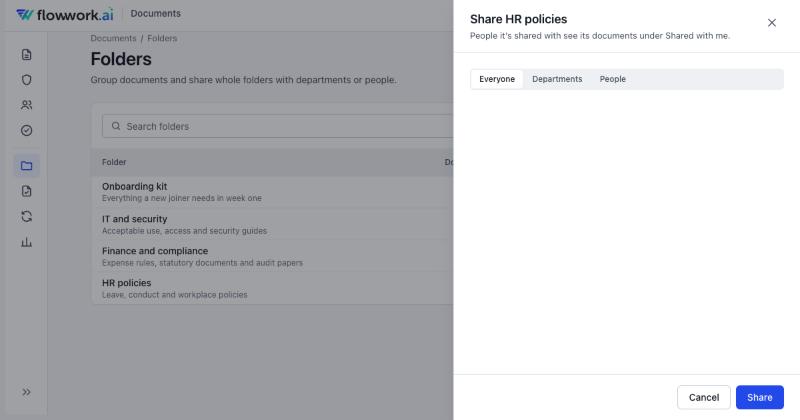
Share a folder with everyone, some departments or some people. It then shows on their Shared with me page.
Before you start
- You need Share folder or Manage folder. See Who can see what.
- Sharing a folder doesn't share the documents inside it. Each document has its own Who can see it setting. Set that to match when you upload. See the note below.
Share it
- Go to Documents › Folders. Open the folder's ⋯ menu and select Share.
- Under Share with, pick Everyone, Departments or People.
- For Departments or People, choose at least one.
- Select Share.
You'll see that the folder is shared.
Read the full guide with your flowwork account
The rest of this page has the steps, screenshots and tips. Anyone at a company that uses flowwork can read every page, and ask the Help assistant about it.
Every step, in order Real screenshots The agents that help
New companies use flowwork free until 31 December 2026