
DocumentsRead and sign
Acknowledge (sign) a document
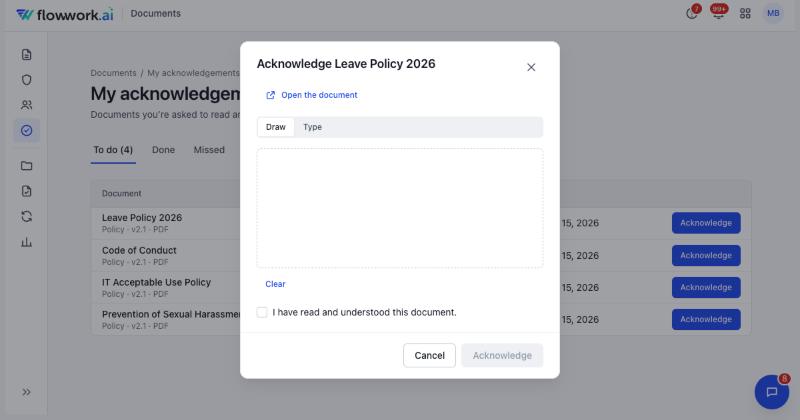
Some documents, usually policies, ask you to confirm that you've read them. You open the document, sign with your mouse, finger or typed name, and tick that you've read and understood it. This is how flowwork does e-sign for policies.
Before you start
- You need no permission. A document you must sign is in Documents › My acknowledgements under To do. You also get an email asking you to sign when it's published.
- You can sign only documents you were asked to sign, and only once they're published.
Sign it
- Go to Documents › My acknowledgements. On To do, find the document.
- Select Acknowledge.
- Select Open the document and read it. It opens in a new tab.
- Choose how to sign:
- Draw: sign in the box with your mouse or finger. Clear starts again.
- Type: enter Your name and pick a Style. You see how it looks below.
- Tick I have read and understood this document. The Acknowledge button stays greyed out until you do.
- Select Acknowledge.
You'll see "You acknowledged" and the document's name.
You can also select Acknowledge on the document's row on Policies or All documents, or in its ⋯ menu.
Read the full guide with your flowwork account
The rest of this page has the steps, screenshots and tips. Anyone at a company that uses flowwork can read every page, and ask the Help assistant about it.
Every step, in order Real screenshots The agents that help
New companies use flowwork free until 31 December 2026