
HelpdeskSetup
Set up channels (email, WhatsApp, web form, incident alerts)
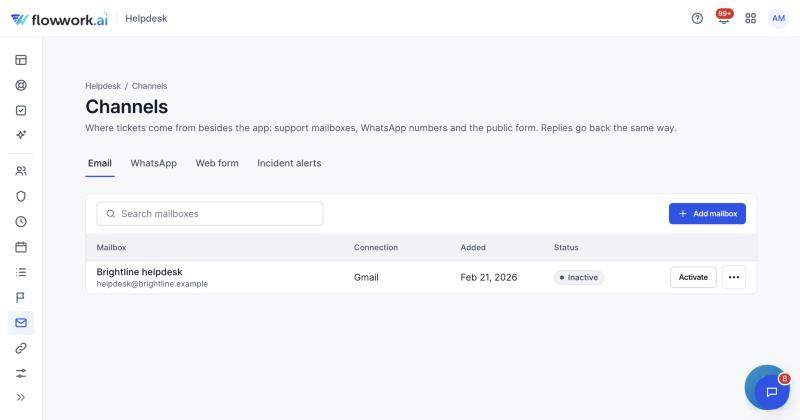
Channels are the ways tickets reach you besides the Helpdesk app itself: a support mailbox, a WhatsApp Business number, a public web form and alerts from a monitoring tool. Open Channels in the Helpdesk menu. The page has four tabs: Email, WhatsApp, Web form and Incident alerts.
Before you start
- You see Channels in the menu when you have Helpdesk administration or View email channels.
- Adding, editing and removing mailboxes and WhatsApp numbers needs Manage email channels (or Helpdesk administration). Without it you see You can look, not change.
- Web form and Incident alerts can be changed only by people with both Manage email channels (or Helpdesk administration) and Helpdesk administration.
- Mailboxes and WhatsApp numbers are kept by flowwork's mail service, not by Helpdesk itself.
Add a support mailbox
Emails sent to a support mailbox become tickets, and agent replies go out from it.
- On the Email tab, click Add mailbox.
- Pick the Provider: Gmail, Microsoft 365 or Other. Gmail and Microsoft 365 fill in the server names for you.
- Enter the Mailbox name. It is shown as the sender, for example "IT support".
- Under Incoming mail (IMAP), check the Server and Port (always 993), and enter the User name (the full email address) and Password.
- Under Outgoing mail (SMTP), check the Server and Port (465 or 587). Leave Same user name and password as incoming ticked, or untick it to enter different ones.
- Click Connect. Both connections are checked before the mailbox is saved.
Gmail and Microsoft 365 need an app password when two-step sign-in is on. Your normal password won't work.
Read the full guide with your flowwork account
The rest of this page has the steps, screenshots and tips. Anyone at a company that uses flowwork can read every page, and ask the Help assistant about it.
Every step, in order Real screenshots The agents that help
New companies use flowwork free until 31 December 2026