
Connect Helpdesk to other tools (Integrations)
Integrations sends tickets to other tools and keeps them in sync. Every company has Workspace and Jira. Each tool has a card with its state and a button to manage it.
Before you start
- You need Helpdesk administration to see Integrations in the menu. Partner users don't see it.
- Workspace is flowwork's Projects app. To map tickets to it, the workspace and its lists must already exist there.
- For Jira you need an Atlassian account with access to your Jira site.
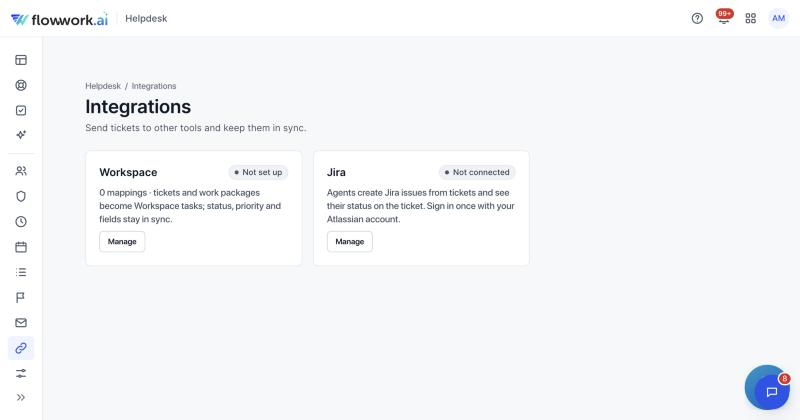
Workspace
A mapping says which helpdesk group (and which of its categories) goes to which Workspace list. Agents can then send a ticket to Workspace as a task, and status, priority and fields stay in sync.
- On the Workspace card, click Manage, then New mapping.
- Basics: enter the Mapping name, pick the Helpdesk group, the Categories (none means all of the group's categories), the Workspace, a list or sprint under Workspace lists, and optionally an Issue type. Click Save and continue. The mapping is saved now.
- Status: for each helpdesk status, pick the Workspace statuses. When the task moves to one of them, the ticket follows.
- Priority: line up helpdesk and Workspace priorities.
- Custom fields: map helpdesk fields to Workspace fields.
- Click Done.
Steps 3 to 5 are saved as you change them. Unmapped values keep the Workspace default. Open a mapping from its ⋯ menu (Open, Edit, Delete). Deleting a mapping leaves tasks already sent in Workspace, but new tickets can't be sent with it.
Read the full guide with your flowwork account
The rest of this page has the steps, screenshots and tips. Anyone at a company that uses flowwork can read every page, and ask the Help assistant about it.