
HelpdeskWorking tickets
The ticket page
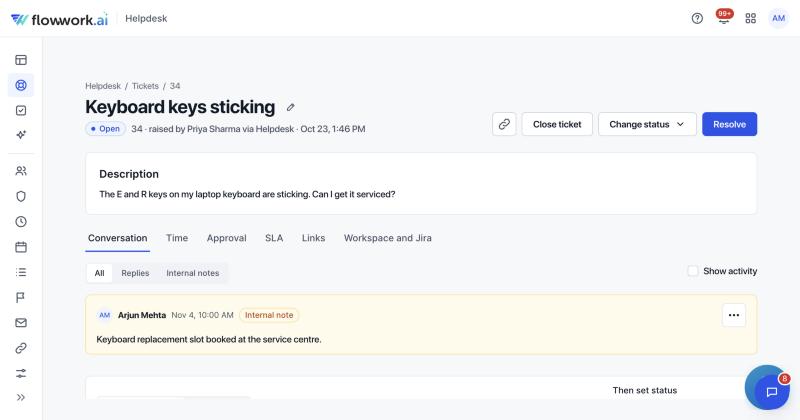
Each ticket has its own page. Open a ticket from the Tickets list, from a dashboard, or from the link in a Helpdesk email. The page shows the title and status at the top, the description, a row of tabs for the work on the ticket, and a side panel with the ticket's details. This page is about what agents see. Requesters see a smaller version, described in Follow a ticket.
Before you start
- You work tickets when you have a helpdesk role in Setup › Agents and roles (for example Agent or Admin). People without a helpdesk role are requesters and only see their own side of the ticket.
- Changing a ticket needs the role permission to update tickets. Replying needs the role permission to add comments. A helpdesk Admin, or someone with Helpdesk administration, can do both.
- If you open a ticket that is deleted, or one you can't see, you get This ticket doesn't exist or you can't see it and a Back to tickets button.
The header
- Title. Select the pencil (Change title) to rename the ticket, then Save, or press Enter. The change shows in the activity.
- Under the title: the status, the channel the ticket came in on (email, WhatsApp, Helpdesk, the app, chat or the API), the ticket number, who raised it and when.
- Copy link copies the ticket's address so you can paste it in a chat.
- Change status, Resolve and Close ticket change where the ticket stands. See Assign, status and priority and Close and reopen a ticket.
Read the full guide with your flowwork account
The rest of this page has the steps, screenshots and tips. Anyone at a company that uses flowwork can read every page, and ask the Help assistant about it.
Every step, in order Real screenshots The agents that help
New companies use flowwork free until 31 December 2026