
HelpdeskSetup
Helpdesk settings (auto close, SLA checks, alerts, feedback)
Settings holds the rules that apply to your whole helpdesk: auto close, SLA checks, AI summaries, email alerts for client accounts, the feedback form and deleted tickets. Changes apply right away. The page has four tabs: General, Notifications, Feedback form and Deleted tickets.
The public web form and incident alerts are set up in Channels, not here.
Before you start
- You need Helpdesk administration to see Settings in the menu. Partner users don't see it.
- The menu shows Settings only to people with Helpdesk administration.
- Everyone signed in can read the settings, because the app needs them (for example to know whether AI summaries are on).
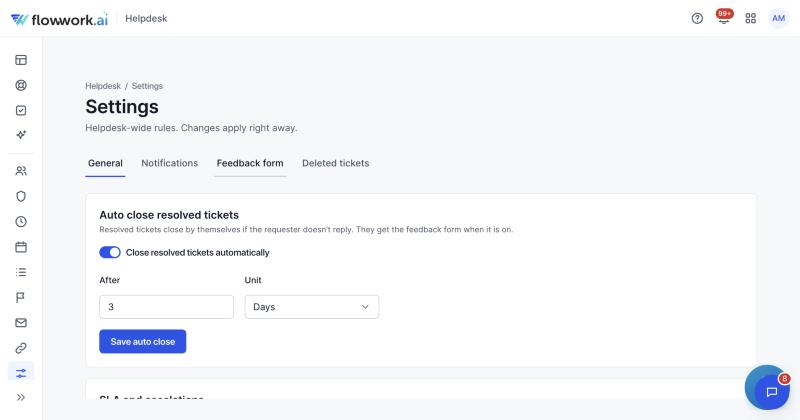
Auto close resolved tickets
Resolved tickets can close by themselves when the requester doesn't reply.
- On the General tab, switch on Close resolved tickets automatically.
- Enter After (a number above 0) and pick the Unit: Days, Hours or Minutes.
- Click Save auto close.
Auto close only runs when Run SLA checks and escalations is also on (see below). It runs on a schedule, so a ticket can close a little later than the time you set.
Read the full guide with your flowwork account
The rest of this page has the steps, screenshots and tips. Anyone at a company that uses flowwork can read every page, and ask the Help assistant about it.
Every step, in order Real screenshots The agents that help
New companies use flowwork free until 31 December 2026