
ChatChat in other apps
Chat in other apps
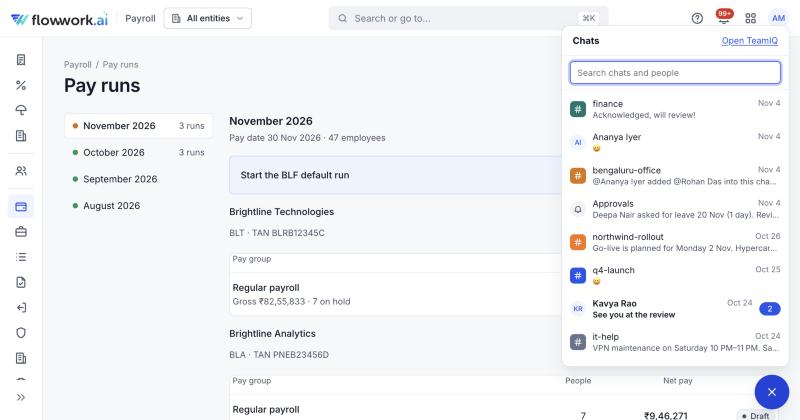
You don't have to leave the app you're in to answer a message. A round chat button sits in the bottom-right corner of flowwork's other apps, such as People, Payroll, Expense or Performance. It opens your chats in small windows over the page.
Before you start
- The button shows in apps that include it, whenever you're signed in. It isn't shown inside TeamIQ itself.
- The red number on the button is your unread count.
Open a chat
- Select the chat button in the bottom-right corner. The Chats panel opens.
- Select a conversation, or type in Search chats and people and pick a chat or a person.
- The chat opens in a small window. Write in the box and press Enter to send.
You can have up to three chat windows open. Each has Open in TeamIQ, Minimise and Close. Open windows stay open as you move around flowwork.
Read the full guide with your flowwork account
The rest of this page has the steps, screenshots and tips. Anyone at a company that uses flowwork can read every page, and ask the Help assistant about it.
Every step, in order Real screenshots The agents that help
New companies use flowwork free until 31 December 2026