
TimesheetsMy time
Log time and change entries
Each piece of time you record is an entry: a day, a project and task, the time, and whether it's billable. The Logs view on My time lists every entry you made, month by month. From there, or from the week grid, you can add an entry with all its details, change it while it's a draft, or delete it.
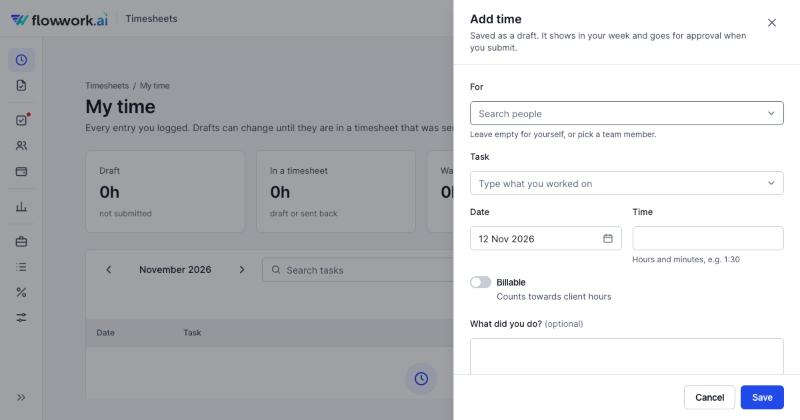
Before you start
- Everyone can log their own time. You don't need a permission.
- To log time for someone else, you need permission to log time for others. See Who can see what.
- Your company decides where projects come from, whether a project and a task are needed, the default time and whether new entries are billable by default (in Setup › Settings).
Open the list of entries
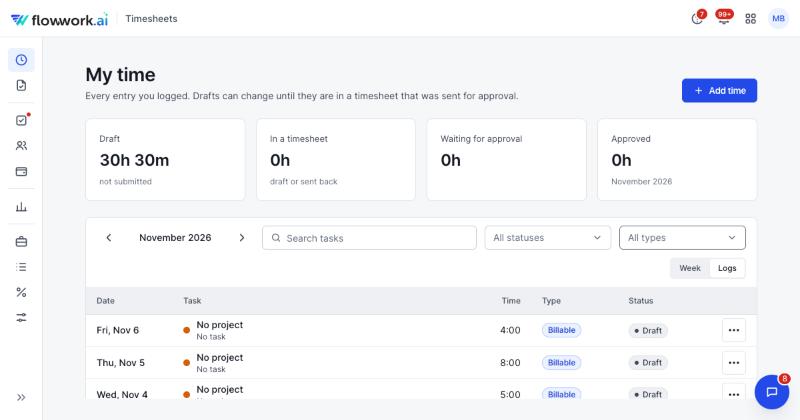
- Open My time from the menu.
- Select Logs at the top of the grid.
You see the month's entries with Date, Task, Time, Type and Status, and four figures: Draft, In a timesheet, Waiting for approval and Approved.
- Use the arrows to move a month back or forward.
- Use Search tasks, the status filter (Draft, In a timesheet, Waiting, Sent back, Approved, Rejected) and the type filter (Billable, Non-billable) to narrow the list.
- The list shows 20 entries a page.
Read the full guide with your flowwork account
The rest of this page has the steps, screenshots and tips. Anyone at a company that uses flowwork can read every page, and ask the Help assistant about it.
Every step, in order Real screenshots The agents that help
New companies use flowwork free until 31 December 2026