
TimesheetsTeam and approvals
Reports
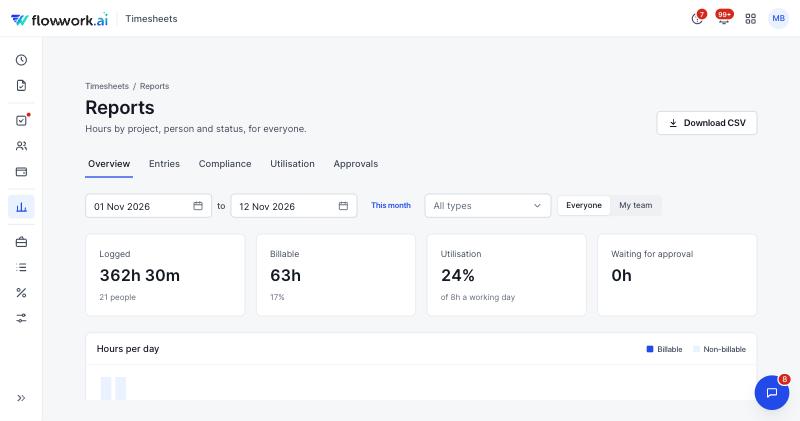
Reports shows hours by project, person and status for a period, how well people submit their weeks, how busy they are, and how fast approvers decide. You can download the entries as a CSV file.
Before you start
- Reports is for people with direct reports in People, people who approve timesheets, and people who can see everyone's timesheets.
- Without permission to see everyone, reports cover you and your direct reports. Entries and the CSV also include entries in timesheets you approve.
- With permission to see everyone, reports cover the whole company. Use People to switch between Everyone and My team.
Set the period and filters
- Go to Timesheets › Insights › Reports. It opens on this month up to today.
- Change From and To, or select This month.
- Choose All types, Billable or Non-billable.
- If you can see everyone, choose Everyone or My team.
The filters apply to every tab.
Read the full guide with your flowwork account
The rest of this page has the steps, screenshots and tips. Anyone at a company that uses flowwork can read every page, and ask the Help assistant about it.
Every step, in order Real screenshots The agents that help
New companies use flowwork free until 31 December 2026