
TimesheetsTeam and approvals
Approve, send back or reject timesheets
When someone sends you a timesheet, it waits in Approvals until you decide. Approve it to lock the entries, send it back so they can fix it, or reject it.
Before you start
- You decide a timesheet if you're its Approver or one of the people under Also can approve. The employee chooses them when they submit; a suggestion comes from their reporting manager in People or the project's approver.
- You don't need a permission. Approvals shows in the menu once you approve at least one timesheet or have direct reports.
- Seeing everyone's timesheets doesn't let you decide them. Only the timesheet's approvers can.
Find what's waiting
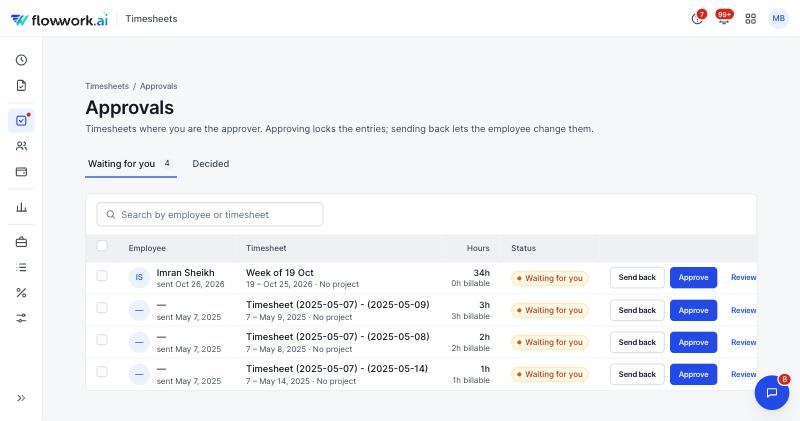
Go to Timesheets › Team › Approvals. The menu shows how many are waiting for you.
- Waiting for you lists timesheets waiting for your decision.
- Decided lists the ones that are now approved, sent back or rejected.
- Type in Search by employee or timesheet to narrow the list.
Each row shows the Employee and when they sent it, the Timesheet with its period and project, the Hours (total and billable) and the Status.
Read the full guide with your flowwork account
The rest of this page has the steps, screenshots and tips. Anyone at a company that uses flowwork can read every page, and ask the Help assistant about it.
Every step, in order Real screenshots The agents that help
New companies use flowwork free until 31 December 2026