
TimesheetsSetup
Timesheets settings
Settings decides how time is logged and who approves it, for the whole company: where projects come from, whether a project and a task are needed on each entry, the defaults for new entries, and the default approvers.
Before you start
- You need Timesheets setup access (Manage timesheet settings). Without it, Setup isn't in the side menu, and a link to this page shows "You don't have access to this page".
- There's one set of settings for the whole company. Changes apply to new entries from the moment you save. Entries already logged keep what they had.
Choose where projects come from
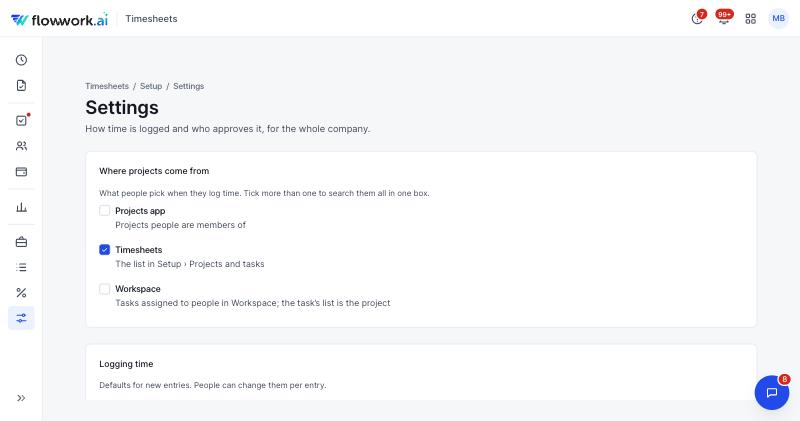
Under Where projects come from, tick one or more places. These are what people pick when they log time.
| Box | What people pick |
|---|---|
| Projects app | Projects people are members of |
| Timesheets | The list in Setup › Projects and tasks |
| Workspace | Tasks assigned to people in Workspace; the task's list is the project |
- Tick the boxes you want. Tick more than one to search them all in one box.
- Select Save changes.
You must tick at least one. With none ticked you'll see "Tick at least one place projects come from." and Save changes stays off.
A company that never saved settings works as if only Projects app is ticked.
Read the full guide with your flowwork account
The rest of this page has the steps, screenshots and tips. Anyone at a company that uses flowwork can read every page, and ask the Help assistant about it.
Every step, in order Real screenshots The agents that help
New companies use flowwork free until 31 December 2026