
TimesheetsStart here
What Timesheets does, and the menu
Timesheets is where you record the hours you spend on projects and tasks, and send them to an approver. You type hours into a week grid or add entries one by one. Once a week is done, you submit it, and each project goes to its approver as one timesheet. Managers see their team's time, approvers decide timesheets, and HR sets up projects, fields and rules.
Before you start
- Open Timesheets from the app launcher (the grid at the top right of any flowwork app). The tile may still be called Time tracking.
- The launcher shows the tile only when your company has Timesheets turned on and your role gives you access to Timesheets. If you don't see it, ask your admin.
- The launcher opens your list of entries (My time in the Logs view). Switch to Week at the top of the list for the week grid.
- What you see in the menu depends on your permissions, your team in People and the timesheets you approve. Two people in the same company can see different menus. See Who can see what.
The menu
The menu has up to four groups. A group with nothing in it for you is hidden.
Timesheets
| Item | What it's for | Who sees it |
|---|---|---|
| My time | Your hours: the week grid (Week) and the list of every entry (Logs). | Everyone |
| My timesheets | The timesheets you sent, with their status, and new timesheets you build by hand. | Everyone |
Team
| Item | What it's for | Who sees it |
|---|---|---|
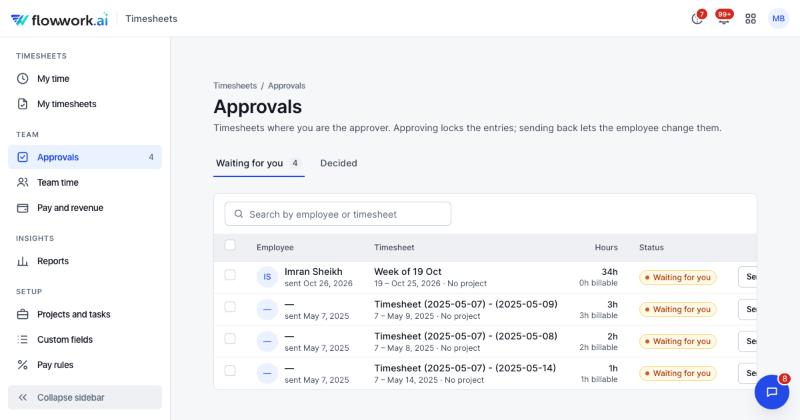
| Approvals | Timesheets waiting for your decision. A number shows how many are waiting. | People who approve timesheets, managers, and people who can see everyone's timesheets |
| Team time | Your team's hours and timesheets, and time you log for them. | Managers with direct reports in People, and people who can see everyone's timesheets |
| Pay and revenue | Day pay and revenue per person for a month. | Only when the company has turned it on: managers for their team, and people who can see everyone's pay |
Insights
| Item | What it's for | Who sees it |
|---|---|---|
| Reports | Hours by project, person and status, utilisation and approval figures. | Managers, approvers, and people who can see everyone's timesheets |
Setup
| Item | What it's for | Who sees it |
|---|---|---|
| Projects and tasks | The Timesheets list of projects and tasks. | People with Timesheets setup access |
| Custom fields | Extra fields on entries and timesheets. | People with Timesheets setup access |
| Pay rules | Day types and rates for Pay and revenue, and the switch that turns it on. | People with Timesheets setup access |
| Settings | Where projects come from, whether projects and tasks are needed, default type and hours, default approvers. | People with Timesheets setup access |
Read the full guide with your flowwork account
The rest of this page has the steps, screenshots and tips. Anyone at a company that uses flowwork can read every page, and ask the Help assistant about it.
Every step, in order Real screenshots The agents that help
New companies use flowwork free until 31 December 2026