
FormsActions
Turn answers into CRM leads (Actions)
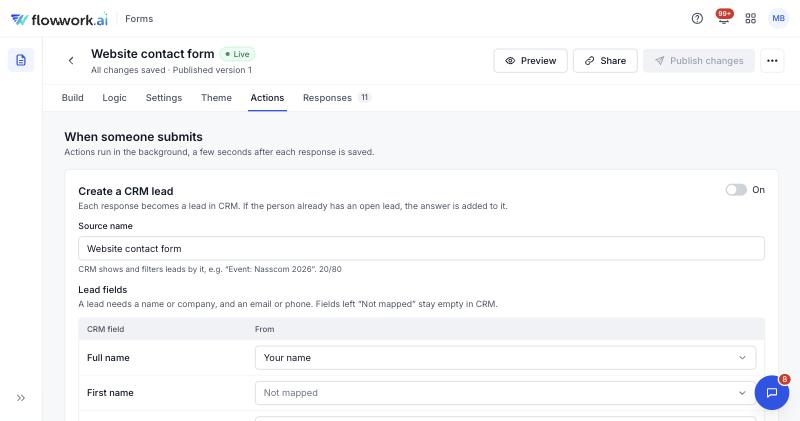
The Actions tab of a form lets each new response become a lead in CRM. It's made for events and enquiry forms: people scan your form's QR code at a stall, pick the products they're interested in, and every answer reaches CRM as a lead with those products, ready for the sales team. You choose which question fills which lead field. Forms then sends each response in the background and shows what happened to it.
Before you start
- Your company must have CRM. If it doesn't, the Actions tab shows Create CRM leads from answers with a note to turn on CRM for your company.
- To turn the action on or change it, you need to be the form's owner or an editor, and have the CRM permission Manage leads. Without both, you see the action but can't change it: "You can see this action but not change it", or "You need “Manage leads” in CRM to change this action".
- Anyone who can open the form (viewers too) can see the action and its run history.
- A lead needs a name or a company, and an email or a phone number. Your form should ask for these.
- For products, set up your product list in CRM first (CRM › Settings › Products). See Products.
Set up the CRM lead action
- Open the form and select the Actions tab.
- Under Create a CRM lead, check the Source name. It starts as the form's name. CRM shows and filters leads by it, so make it clear, for example "Event: Brightline Expo 2026" (up to 80 characters).
- Under Lead fields, check each row. Each CRM field (Full name, Email, Phone, Company and so on, plus your company's own lead fields) is filled from a question you pick, from a Fixed value… that's the same for every lead, or stays Not mapped. The first time you open the tab, Forms matches the obvious ones for you: the email question to Email, the phone question to Phone, a question called "Name" or "Full name" to Full name, a company question to Company, GSTIN to GSTIN, and the city, state and pincode of an address question.
- Under Products, choose one:
- Map to a question: a multiple choice, dropdown or checkboxes question. The options people pick are sent as the products they're interested in.
- Same products for every answer: tick products from your CRM list. Good for a form about one product or one event.
- Don’t send products.
- Leave Send other answers on to add the answers you didn't map to the lead, by question title. Files go as file names only.
- Turn the switch at the top of the card On.
- Select Save. You see "CRM lead action saved and on".
To stop sending, turn the switch off and Save, or select Remove and confirm Remove the CRM lead action?. Discard throws away changes you haven't saved.
Read the full guide with your flowwork account
The rest of this page has the steps, screenshots and tips. Anyone at a company that uses flowwork can read every page, and ask the Help assistant about it.
Every step, in order Real screenshots The agents that help
New companies use flowwork free until 31 December 2026