
FormsBuild a form
Build a form
The Build tab is where you add sections and questions, word them, and set which ones are required. Your changes save on their own as you work. People only see them after you publish.
Before you start
- You need access to Forms and the Owner or Editor role on the form. See Permissions and form roles.
- With the Viewer role, the tab is called Questions. You see the current draft as people will see it, with the note "You can see this form but not change it". Ask the owner to make you an editor.
- A new blank form starts with one section, "Section 1", and no questions.
How the tab is laid out
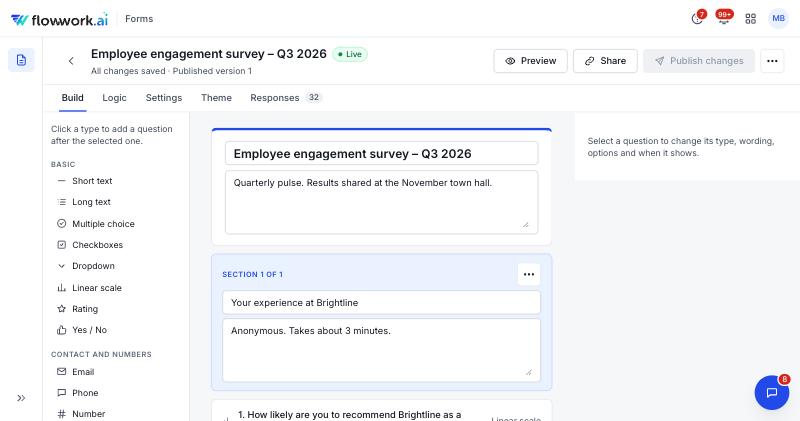
On a wide screen (about 1100 px or more) the tab has three parts:
- On the left: the question types, in groups (Basic, Contact and numbers, Advanced, Checked and India, Layout). Click a type to add a question after the selected one.
- In the middle: the form name and description, then each section with its questions.
- On the right: the settings of the selected question. With nothing selected, it says "Select a question to change its type, wording, options and when it shows."
On a narrower screen there's no list on the left. Use Add question under a section instead. A question's settings open inside its card when you select it.
Read the full guide with your flowwork account
The rest of this page has the steps, screenshots and tips. Anyone at a company that uses flowwork can read every page, and ask the Help assistant about it.
Every step, in order Real screenshots The agents that help
New companies use flowwork free until 31 December 2026