
FormsShare and collect
Form settings
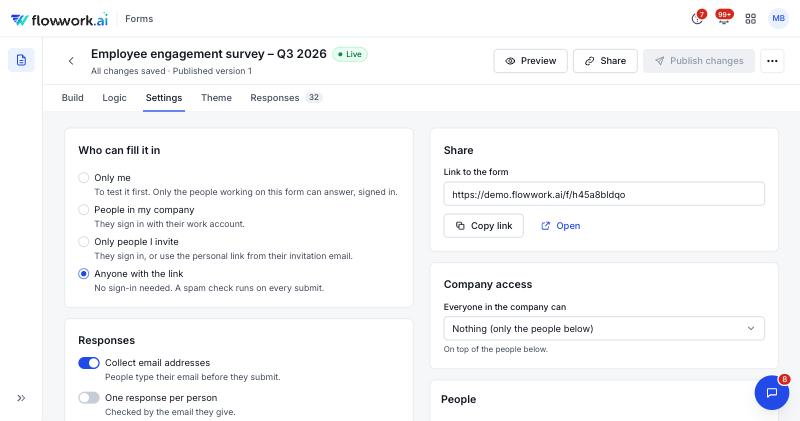
The Settings tab of a form decides who can fill it in, what happens with each response and who hears about it. It also holds the form's link, who in your company can work on the form, and whether it's taking responses. Open a form and select Settings.
Before you start
- You need access to Forms, and you must be an Owner or Editor of the form to change its settings. A Viewer sees the settings greyed out. See Who can do what.
- The cards on the left (Who can fill it in, Responses, Notifications, Hidden fields, Embedding) save together with Save changes. The cards on the right (Company access, People, Status, and Your emails under Notifications) save at once.
- Settings apply to the live form straight away. You don't need to publish again.
Save or discard your changes
- Change what you need in the cards on the left.
- The bar at the bottom says Unsaved changes. Select Save changes. You'll see Settings saved.
- To go back to what was saved, select Discard.
If you move to another tab with unsaved changes, you're asked Leave without saving? first.
Read the full guide with your flowwork account
The rest of this page has the steps, screenshots and tips. Anyone at a company that uses flowwork can read every page, and ask the Help assistant about it.
Every step, in order Real screenshots The agents that help
New companies use flowwork free until 31 December 2026