
FormsResponses
The responses table and export
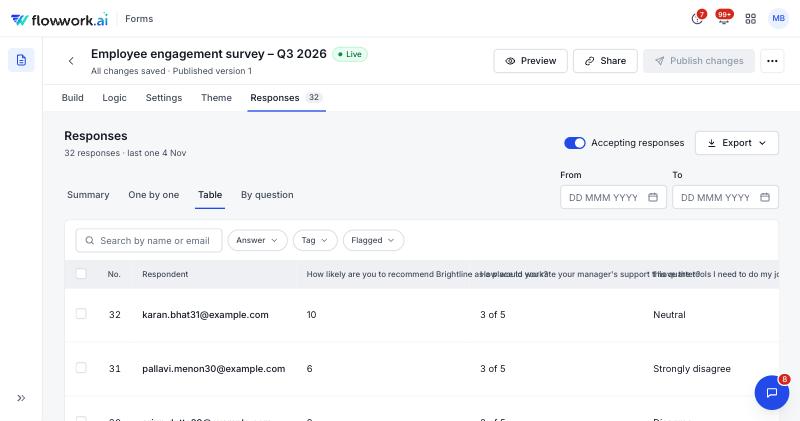
Table lists a form's responses 20 to a page, newest first. Search by name or email, filter by an answer, a tag or the Flagged mark, delete several at once, and download everything as an Excel or CSV file.
Before you start
- Any role on the form (Owner, Editor or Viewer) can use the table and export. So can people with the permission to see all forms.
- Only an Owner or Editor sees the tick boxes and can delete responses.
Columns
- No.: the response number, given in the order responses came in.
- Respondent: name and email, or Anonymous if the form didn't collect them.
- The first three questions of the version that's live now.
- Tags, with a red Flagged badge when a GSTIN or PAN didn't match the records. Up to three tags show, then "+" and how many more.
- Submitted: date and time, India time (IST).
- Version: which version of the form the person answered.
- Notes: how many notes the response has.
On a phone, only No., Respondent and Submitted show. You can't choose or reorder columns; for every answer, open the response or export.
Read the full guide with your flowwork account
The rest of this page has the steps, screenshots and tips. Anyone at a company that uses flowwork can read every page, and ask the Help assistant about it.
Every step, in order Real screenshots The agents that help
New companies use flowwork free until 31 December 2026