
FormsResponses
Read responses one by one
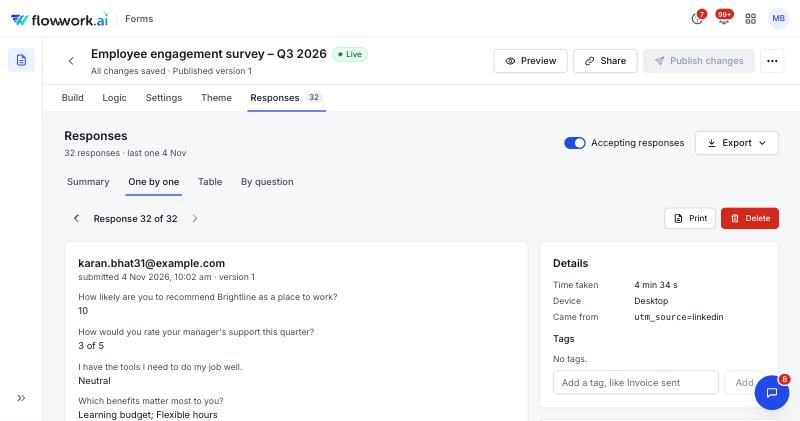
One by one shows a single response in full: every answer, uploaded files, signatures, the GSTIN or PAN check result, and details such as the time taken and device. Here you also tag a response, add notes for your team, print it or delete it.
Before you start
- Any role on the form (Owner, Editor or Viewer) can read responses, open files, print and add notes. So can people with the permission to see all forms.
- Only an Owner or Editor can change tags and delete responses.
Open a response
- Open the form and select the Responses tab.
- Select One by one. The newest response opens.
- Use the arrows next to Response … of …: the left arrow opens the response sent before this one, the right arrow the one sent after.
You can also open a response by selecting a row in Table or By question, or the Open the response button in a new-response email.
Read the full guide with your flowwork account
The rest of this page has the steps, screenshots and tips. Anyone at a company that uses flowwork can read every page, and ask the Help assistant about it.
Every step, in order Real screenshots The agents that help
New companies use flowwork free until 31 December 2026