
FormsBuild a form
Preview and publish a form
Everything you change on the Build and Logic tabs is a draft. Preview lets you try the draft as people will see it. Publish makes it the version people answer. Each publish is saved as a numbered version, and you can throw away unpublished changes to go back to the last version.
Before you start
- Anyone who can open the form can use Preview. To publish or discard changes you need the Owner or Editor role on the form.
- Publishing doesn't need a separate permission. Who can answer the form, and when, is set on the form's Settings tab. See Form settings.
Preview the draft
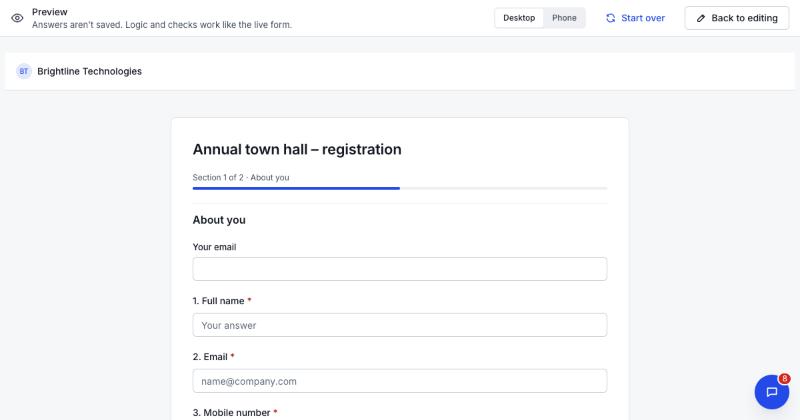
- In the form's top bar, select Preview (or ⋯ › Preview on a small screen).
- Pick Desktop or Phone.
- Answer the questions and go through the sections. Logic, required questions and answer checks work like the live form.
- On the last section, select the submit button. You'll see "Preview: answers not sent" with your thank-you message, or the end message of an End form rule.
- Select Start over to try again, or Back to editing (or press Esc) to close it.
Read the full guide with your flowwork account
The rest of this page has the steps, screenshots and tips. Anyone at a company that uses flowwork can read every page, and ask the Help assistant about it.
Every step, in order Real screenshots The agents that help
New companies use flowwork free until 31 December 2026