
FormsShare and collect
Share a form
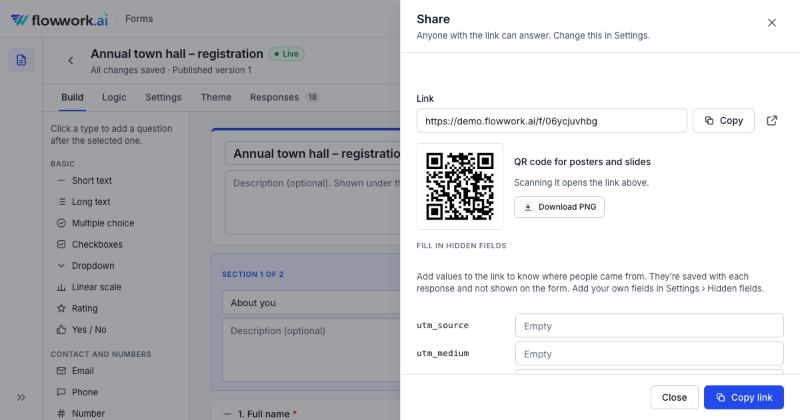
Once a form is published, share it from the Share drawer: copy its link, download a QR code, put it on a website, or email people their own personal link and see who has answered. Open a form and select Share at the top, or ⋯ › Share….
Before you start
- The form must be published. Until then the drawer says Publish the form first. See Preview and publish.
- Anyone who can open the form can use the Link and Embed tabs. The Email and Invited tabs are only for the form's owner and editors.
- Check Who can fill it in in the form's Settings first. The top of the drawer reminds you who can answer. See Form settings.
Copy the link
- Select Share. The Link tab opens.
- Select Copy next to Link, or Copy link at the bottom. You'll see Link copied.
- To try it yourself, select the open icon next to it.
The link looks like https://brightline.flowwork.ai/f/k3m9q2x7ab. It's the same link for every kind of form. For company and invited forms, people who open it are asked to sign in. You can also copy the link from ⋯ › Copy link in the form header, or from the form's row in the Forms list.
Read the full guide with your flowwork account
The rest of this page has the steps, screenshots and tips. Anyone at a company that uses flowwork can read every page, and ask the Help assistant about it.
Every step, in order Real screenshots The agents that help
New companies use flowwork free until 31 December 2026