
PerformanceCompensation
Hike cycles and hike rules
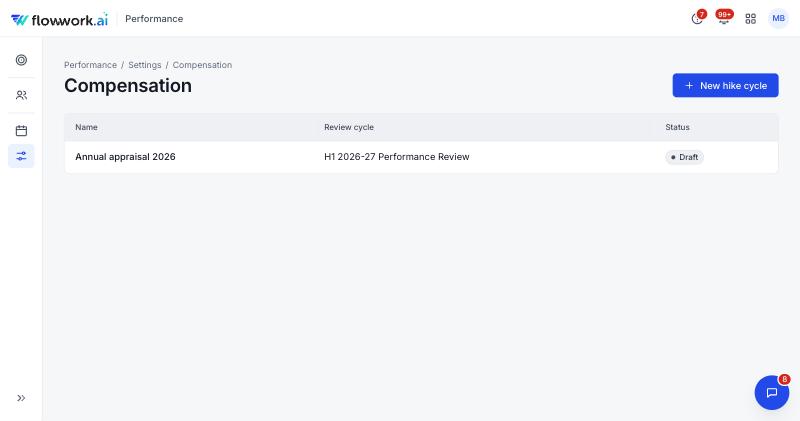
A hike cycle turns the final ratings of one review cycle into salary hikes. You create it under Settings › Hike cycles, set a hike table (which hike % goes with which final rating) and a budget, and then build the hike sheet. This page covers the hike cycle and its rules. The sheet itself is on The hike sheet.
Before you start
- You need two permissions: manage compensation (
allow_manage_compensation) and manage performance cycles (allow_manage_performance_cycles). The first lets you see pay. The second opens Settings in Performance. Without the compensation permission, Hike cycles doesn't show under Settings. - You need a review cycle with final ratings, or one that will have them. See Calibration and final ratings.
- Current pay comes from People: the employee's fixed annual pay in their compensation. Check it's filled in, or you'll have to type it on the sheet.
Create a hike cycle
- Go to Admin › Settings and select Hike cycles under Compensation.
- Select New hike cycle.
- Enter a Name, for example "Hikes April 2026".
- Choose the Review cycle (final ratings come from it).
- Select Create.
The hike sheet of the new cycle opens. It's empty until you generate it.
Read the full guide with your flowwork account
The rest of this page has the steps, screenshots and tips. Anyone at a company that uses flowwork can read every page, and ask the Help assistant about it.
Every step, in order Real screenshots The agents that help
New companies use flowwork free until 31 December 2026