
PerformanceTeam performance
Team performance
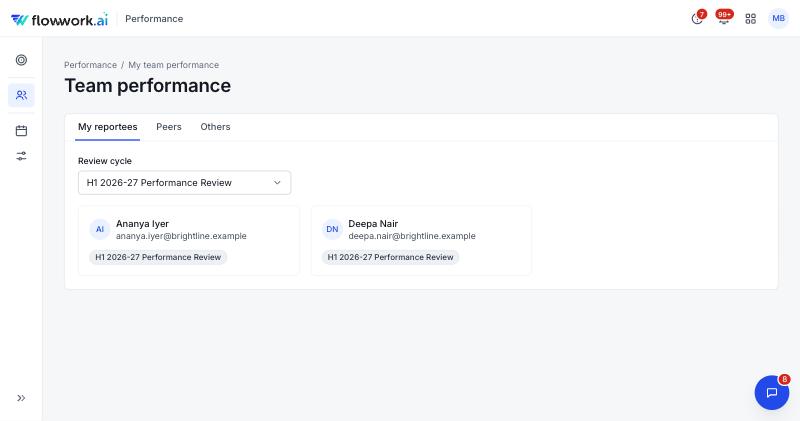
Team performance shows the people you review in a review cycle: your reportees, the colleagues who chose you as a peer, and (for HR) everyone else. Open a person to see their goals and their review.
Before you start
- Everyone sees Team performance in the menu. You don't need a permission.
- People appear here only after HR starts the review cycle. That's when each employee gets their managers from People.
- Your reportees are the people whose reporting manager or additional reporting manager in People is you, at the time the cycle started.
- You see a colleague under Peers once their peer list (with you on it) is approved.
- The Others tab shows only for HR: people who may view everyone's reviews (permission
allow_view_employee_performance_reviews) or who manage review cycles.
Find the people you review
- Go to Performance › Team performance.
- Choose the cycle in Review cycle. The newest cycle is picked for you.
- Pick a tab:
- My reportees: people you review as their manager.
- Peers: people you review as a peer.
- Others: everyone in the cycle (HR only).
- Each tile shows the person's name, email and the cycle name. Select a tile to open the person.
If a tab is empty, it says what goes there: Review your team here (My reportees), Review your peers here (Peers) or Follow everyone else's reviews here (Others). Before any review cycle has started, you see Review your team once a review cycle starts.
Read the full guide with your flowwork account
The rest of this page has the steps, screenshots and tips. Anyone at a company that uses flowwork can read every page, and ask the Help assistant about it.
Every step, in order Real screenshots The agents that help
New companies use flowwork free until 31 December 2026