
WorkspaceSettings
Automations
An automation changes tasks for you when something happens. For example: when all subtasks of a task are done, set the parent task to DONE. You build each automation from one trigger (When) and one action (Do This). Automations you make in the workspace settings work for tasks across the workspace.
Before you start
- You need the Manage workspace permission to open the workspace settings. See Workspace settings.
- Set up the statuses, priorities and types you want to use first. See Statuses, priorities, types and transitions.
- For the GitHub automation, the repository must be linked in Workspace. See Repositories.
Create an automation
- In the workspace settings, select Automations.
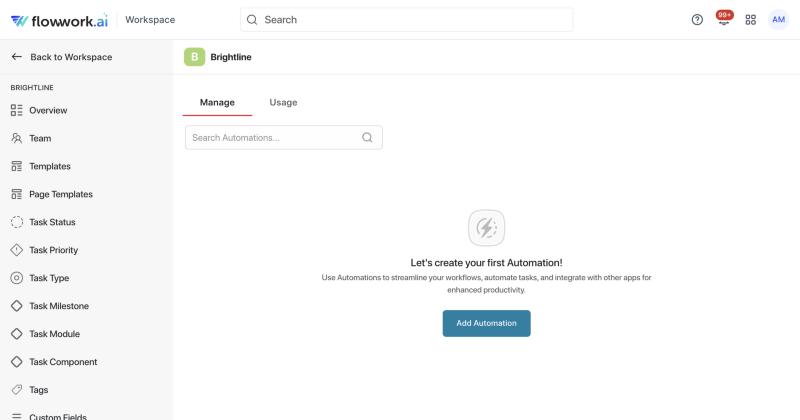
- On the Manage tab, select Add Automation. This button shows under Let's create your first Automation! while the workspace has no automations yet.
- In Select Automation Template, pick a starting point:
- Under Recommended, select Create a custom automation to start empty, or one of the ready-made cards.
- Under INTEGRATIONS, select GitHub, then Create Your Own Automation or the Pull Request Merged card.
- In Add New Automation, type an Automation name and, optionally, a Description.
- Under When, in Select automation trigger type, pick what starts the automation, and fill in the details that appear.
- Under Do This, in Select automation action type, pick what should happen, and fill in the details.
- Select Create.
You see Automation created successfully, and the automation shows as a card marked Active.
Read the full guide with your flowwork account
The rest of this page has the steps, screenshots and tips. Anyone at a company that uses flowwork can read every page, and ask the Help assistant about it.
Every step, in order Real screenshots The agents that help
New companies use flowwork free until 31 December 2026