
WorkspaceTasks
Task details
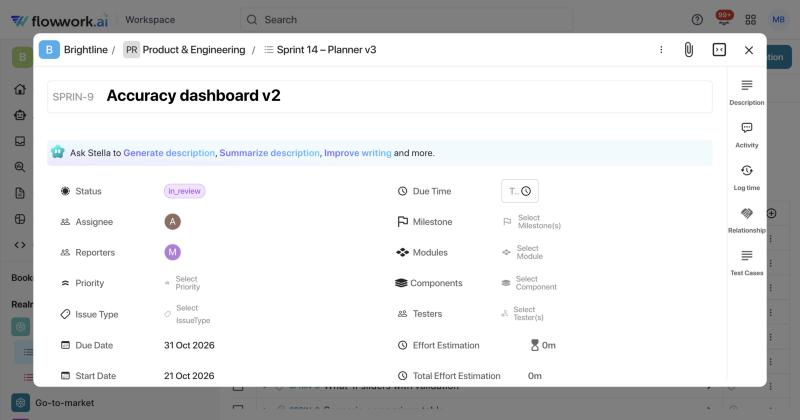
A task's details hold everything about one piece of work: its status, people, dates, description, subtasks, files, comments, time logged and links to code. You open them from any task view, or by a task's own link. This page explains what you can see and change there.
Before you start
- You can open a task if you can open its list. In a private realm, folder or list, you must be a member with a role that allows viewing. Otherwise you see Permission Denied.
- Changing or deleting the task needs a role that allows editing or deleting in a private item. In a public realm, everyone in the workspace can.
Open a task
- In a List view, select the task's name, or select ⋮ › Edit task. The task opens in a panel next to the list, and the page address gets the task, so you can share it.
- In a Board or Calendar view, select the card.
- To open the task on its own page, use Copy link (in the task's ⋮ menu) and open the link. Links to a parent, subtask or linked task in the details also open their own page.
On the task's own page, the path above the name shows its realm, folder and list. Select any part to go there.
Read the full guide with your flowwork account
The rest of this page has the steps, screenshots and tips. Anyone at a company that uses flowwork can read every page, and ask the Help assistant about it.
Every step, in order Real screenshots The agents that help
New companies use flowwork free until 31 December 2026