
WorkspaceStart here
Find your way around Workspace
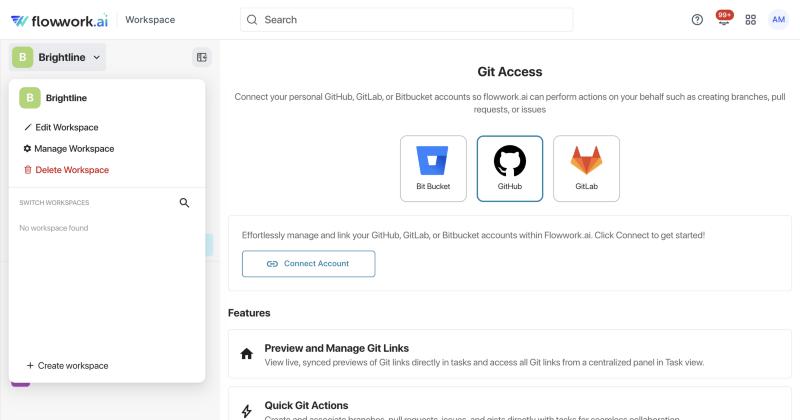
Workspace has a top bar across the page and a sidebar on the left. The top bar has search, help, notifications, the app launcher and your account menu. The sidebar has the workspace switcher, the main pages, your bookmarks and the realms of the workspace you're in.
Before you start
- You need the View workspace or Manage workspace permission to open Workspace.
- Some sidebar items show only with a permission or a company setting. The table below says which.
The top bar
| Part | What it does |
|---|---|
| Logo | Takes you to flowwork's home page. |
| Workspace | The name of the app you're in. |
| Search | Finds tasks in the workspace you're in. See the next section. |
| Help (?) | Opens the user guide and, if your company has one, the Help assistant. |
| Bell | Your notifications. A notice about a Workspace task opens it here; others open their own app. |
| App launcher (grid) | Opens your other flowwork apps. |
| Your name | Your account menu: profile, theme, Switch account and sign out. |
Read the full guide with your flowwork account
The rest of this page has the steps, screenshots and tips. Anyone at a company that uses flowwork can read every page, and ask the Help assistant about it.
Every step, in order Real screenshots The agents that help
New companies use flowwork free until 31 December 2026