
WorkspaceSettings
Statuses, priorities, types and transitions
Every task has a status, a priority and a type. In the workspace settings you choose which ones the realms of this workspace can use. With transitions you also decide how a task may move from one status, or one type, to another.
Before you start
- You need the Manage workspace permission to open the workspace settings. See Workspace settings.
- What you set here is shared by every realm in the workspace. Realms see these entries marked Inherited in their own configuration and can't change them there.
- Changes save as you make them. There is no separate Save button on these pages.
Add a task status
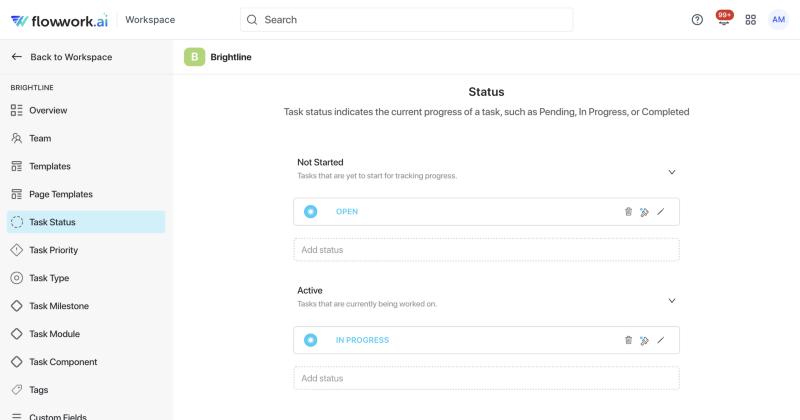
Statuses are sorted into status groups. Each group shows its name and a short description, so you can see what kind of status belongs there.
- In the workspace settings, select Task Status.
- Under the group you want, select Add status.
- In the box (Search status or create new.), type the name, for example "In review", and press Enter.
- Optionally select the icon on the left to pick another icon, or the colour icon to pick a colour.
Status names are saved in capitals, for example "IN REVIEW". Two statuses can't have the same name: you see Oops! Status name is already taken.
Read the full guide with your flowwork account
The rest of this page has the steps, screenshots and tips. Anyone at a company that uses flowwork can read every page, and ask the Help assistant about it.
Every step, in order Real screenshots The agents that help
New companies use flowwork free until 31 December 2026