
Contacts
Contacts are the people you deal with at the companies you sell to and serve. A contact can belong to one company, and has its own timeline, deals, tasks and history. Contacts come from converted leads, imports or New contact.
A contact isn't the same as a lead: a lead is someone interested who isn't qualified yet; once qualified, you convert the lead into a contact. Until you convert leads or add contacts, the Contacts page is empty and explains the steps. See Convert a lead.
Before you start
- You see contacts if you have access to CRM. Which ones depends on who owns them: your own, those of people who report to you in People (directly or further down), and unassigned ones. With the "view all CRM" permission you see every contact in your company.
- You also see a contact through its company: if you can see the company, you can open all its contacts from the company's Contacts tab.
- To add, edit or delete contacts you need the permission to manage customers. Without it, the buttons don't show.
- See Who can see what.
Find a contact
- Go to Contacts.
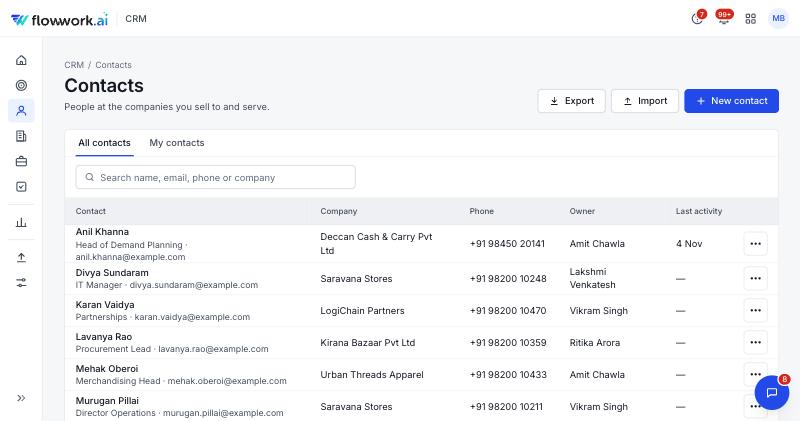
- Pick a tab: All contacts (or All I can see if you can't see everyone) or My contacts (only the ones you own).
- Type in Search name, email, phone or company. Phone search needs at least four digits.
Each row shows the Contact with job title and email, the Company, Phone, Owner (or Unassigned) and Last activity. Select a row to open the contact. The list shows 25 contacts a page, sorted by name.
Read the full guide with your flowwork account
The rest of this page has the steps, screenshots and tips. Anyone at a company that uses flowwork can read every page, and ask the Help assistant about it.