
CRMLeads
The leads list
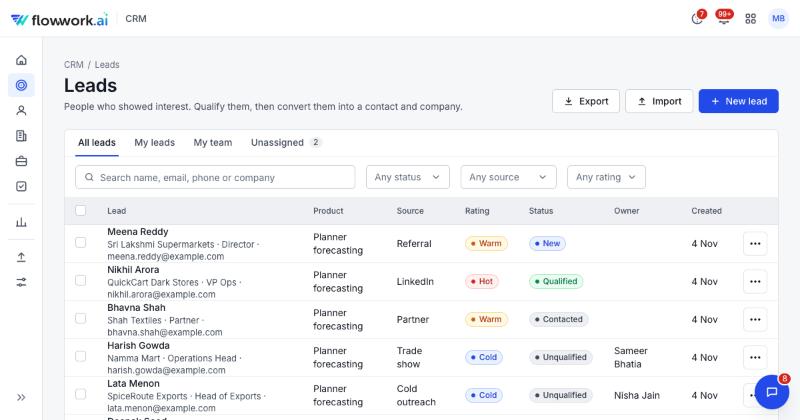
Leads lists the people who showed interest but aren't customers yet. From here you find a lead, filter by status, source, product or rating, hand leads to someone else, and add or import new ones.
Before you start
- Everyone with access to CRM can open Leads and see the leads they're allowed to see.
- To add, edit, delete or reassign leads, you need permission to manage leads.
- The Export button shows only if you may export. See Who can see what.
The tabs
- All leads (or All I can see if you can't view everything): every lead you may see.
- My leads: leads you own.
- My team: leads owned by you and by people who report to you in People.
- Unassigned: leads with no owner. The number shows how many are waiting. Anyone in CRM can pick them up.
Read the full guide with your flowwork account
The rest of this page has the steps, screenshots and tips. Anyone at a company that uses flowwork can read every page, and ask the Help assistant about it.
Every step, in order Real screenshots The agents that help
New companies use flowwork free until 31 December 2026