
Set up pipelines and stages
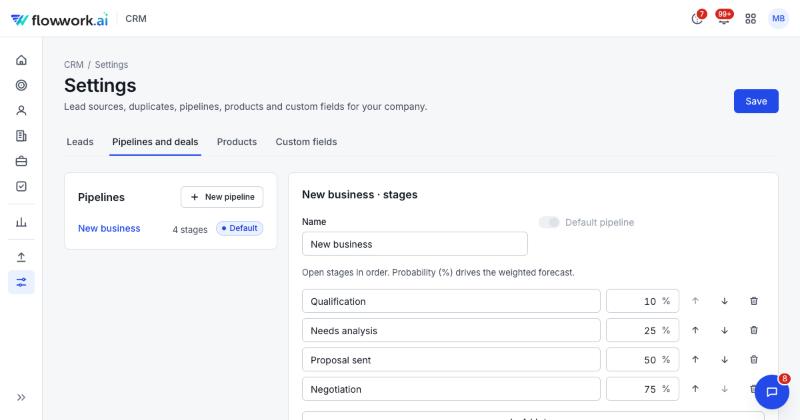
A pipeline is the list of stages a deal goes through, from first talk to won or lost. Each stage has a win chance (probability) that drives the weighted forecast, and its own icon and colour, which show on the Deals board, on each deal and in the Forecast. Most companies need one pipeline. Add another when you sell something that follows different steps, for example renewals.
Before you start
- You need permission to manage CRM settings. Everyone else sees the same screen read-only, without deal counts.
- Go to Settings and select Pipelines and deals.
How the page is laid out
- Pipeline cards at the top: one card per pipeline with its stage colours, how many stages and open deals it has, and Default on the default one. Select a card to open that pipeline. On a phone or a narrow window the cards become a Pipeline list.
- Below, the selected pipeline: its name, whether it's the default, the products that start here, its Stages, and a Preview of how the Deals board will show it.
- Deals below that: currency, at-risk days and reasons, for all pipelines.
There's one save button. As soon as you change something, a bar appears at the bottom: Unsaved changes in … with Discard and Save pipeline. If you try to open another pipeline, another settings section or another page before saving, CRM asks Discard changes? first.
Read the full guide with your flowwork account
The rest of this page has the steps, screenshots and tips. Anyone at a company that uses flowwork can read every page, and ask the Help assistant about it.