
CRMLeads
A lead's page
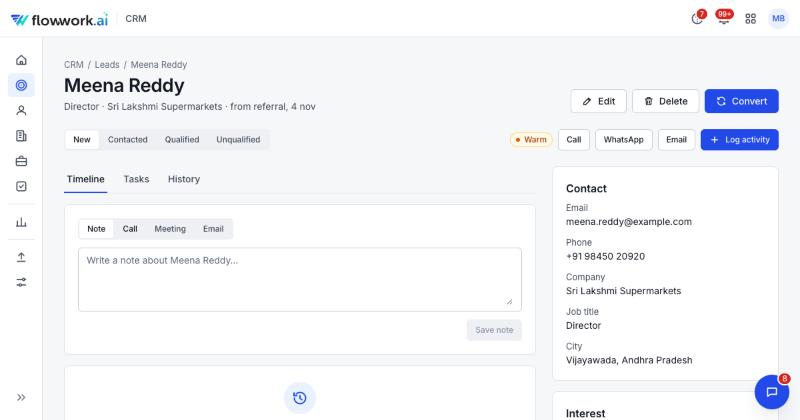
A lead's page has everything about one lead: its status, how to reach them, what they're interested in, where they came from, and a timeline of every note, call, form and status change. From here you work the lead until you convert it or mark it unqualified.
Before you start
- You can open any lead you're allowed to see. See Who can see what.
- To edit the lead, change its status, delete or convert it, you need permission to manage leads.
What's on the page
- Key facts, right under the name: Email, Phone, Company, Owner, Status and Next step. Each has its own buttons:
- the copy button copies the email, phone or company name, and says "Phone copied";
- next to the email, the mail button opens Email (see Send an email); next to the phone, WhatsApp opens a chat and the phone button calls;
- the person button next to Owner changes the owner in one go;
- Status opens a short list of statuses;
- Next step says what to do next, by when and why, with the button that does it: an open task first, otherwise the step from your company's playbook. It turns red when late. See Next steps and the playbook.
- Quick actions under the facts: Call, WhatsApp, Email, Add task, Schedule meeting and Log activity.
- Timeline: notes, calls, meetings, emails, form submissions, website requests and status changes, newest first. Meetings still to come show under Upcoming.
- Tasks: follow-ups on this lead, with the number still open.
- History: who changed which field, and when.
- On the right: the Lead qualifier and Research cards (when your company uses them), then Details (job title, industry, website, city, tags), Interest (product, team size, budget, notes), More details (your company's own fields), Visiting card photos and Source (channel, campaign, page and extra answers). If your company uses lead data, Fill company details on Details fills the industry, size and city from the flowwork company database (see Lead data and company details).
Read the full guide with your flowwork account
The rest of this page has the steps, screenshots and tips. Anyone at a company that uses flowwork can read every page, and ask the Help assistant about it.
Every step, in order Real screenshots The agents that help
New companies use flowwork free until 31 December 2026