
CRMStart here
What CRM does, and the menu
CRM is where your sales team keeps track of the people who showed interest, the customers you sell to and the deals you're working on. Leads come in from your website, your forms, a spreadsheet or by hand. You qualify them, then convert the good ones into a contact, a company and a deal. Deals move through the stages of a pipeline until you win or lose them.
Before you start
- Open CRM from the app launcher (the grid at the top right). It opens on Home.
- The CRM tile shows only when CRM is switched on for your company and your role gives you access to CRM. See Who can see what.
- Most people see their own records, their team's records and unassigned ones. Sales managers and CRM admins usually see everything.
The menu
The menu has three groups.
CRM
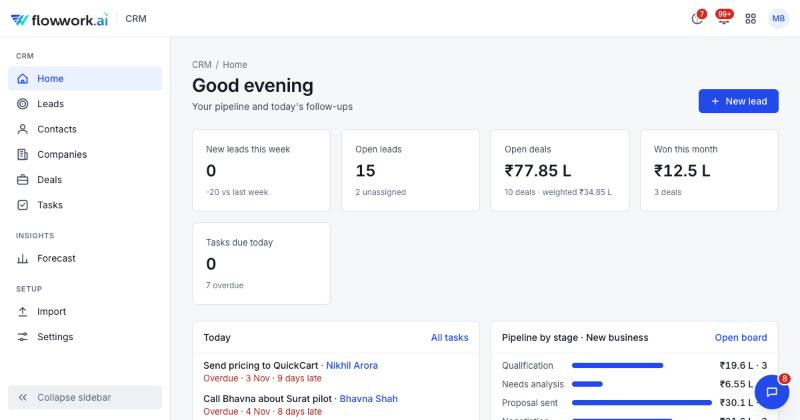
- Home: your numbers, today's follow-ups and your pipeline at a glance. See Home.
- Leads: people who showed interest and aren't customers yet. See The leads list.
- Contacts: the people at the companies you sell to and serve. See Contacts.
- Companies: your customer list, shared with Books, Helpdesk and Projects. See Companies.
- Deals: the deals you're working on, as a board by stage or as a list. See The deals board.
- Tasks: your follow-ups: calls, emails, meetings, WhatsApp messages and to-dos. See Tasks.
Insights
- Forecast: what's likely to close and when. See Forecast.
Setup
- Import: bring in leads, contacts or companies from a CSV or Excel file. Only people who manage leads or customers see it. See Import from a spreadsheet.
- Settings: lead sources, duplicates, pipelines, products and custom fields. Everyone can look; only CRM admins can change them. See CRM settings.
Read the full guide with your flowwork account
The rest of this page has the steps, screenshots and tips. Anyone at a company that uses flowwork can read every page, and ask the Help assistant about it.
Every step, in order Real screenshots The agents that help
New companies use flowwork free until 31 December 2026