
Import from a spreadsheet
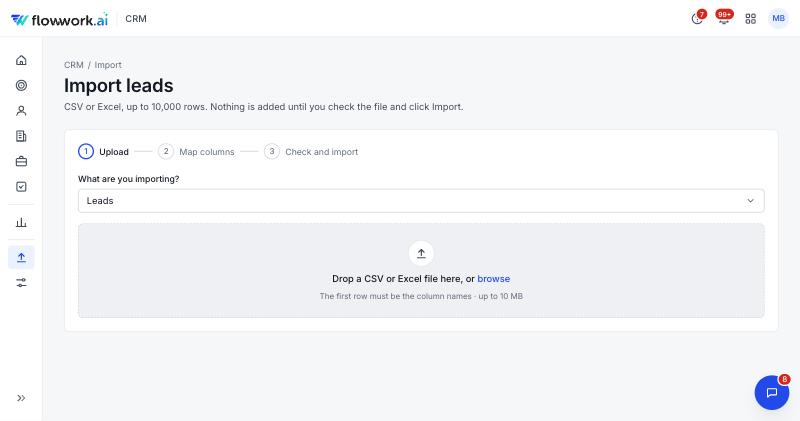
Bring in leads, contacts or companies from a CSV or Excel file, for example a list from a trade show or the customers from your old system. CRM matches your columns, shows you what it will add and what's wrong, and adds nothing until you select Import.
Before you start
- To import leads, you need permission to manage leads. To import contacts or companies, you need permission to manage customers. Import shows in the menu only if you have one of them.
- The file is a CSV (.csv) or Excel file (.xlsx or .xls), up to 10 MB and 10,000 rows. CRM reads only the first sheet of an Excel file.
- The first row must be the column names. Up to 60 columns.
- Save CSV files as UTF-8 so names and ₹ come through. Commas, semicolons or tabs between columns all work.
- To import contacts linked to companies, import the companies first.
- Not sure how to name the columns? Start from the template (next section).
Download the template
The template is a spreadsheet with the columns CRM reads for what you're importing, your own fields from Settings › Custom fields, and one example row.
- Select Import in the menu, and pick What are you importing?: Leads, Contacts or Companies.
- Under Start from our template, select Excel (.xlsx) or CSV.
- Fill one row per record under the example. Leave a cell empty if you don't know the value.
The Excel template also has:
- column names marked * (required) in yellow,
- drop-down lists for Status, Rating, Lead source, company Type and your pick-list fields,
- Phone and PIN code columns kept as text, so Excel doesn't drop a leading 0 or the +,
- a second sheet, How to fill, with the same guide as the page.
You can keep or delete the example row (Asha Rao, or Example Hospitals Pvt Ltd for companies). As long as you don't change it, it's left out when you import.
Don't rename the columns. Then every column is matched for you in the next step. You can also remove columns you don't need.
Read the full guide with your flowwork account
The rest of this page has the steps, screenshots and tips. Anyone at a company that uses flowwork can read every page, and ask the Help assistant about it.