
CRMSettings
CRM settings
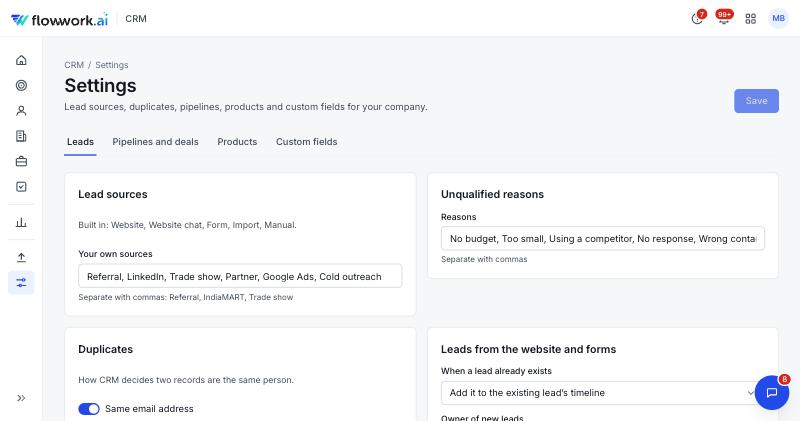
Settings holds the choices that apply to everyone in your company's CRM: lead sources, unqualified reasons, how duplicates are found, what happens to website and form leads, the deal currency and when a deal counts as at risk. This page covers the Leads tab and the general deal settings. Pipelines, products and custom fields have their own pages.
Before you start
- To change settings you need the permission to manage CRM settings. Everyone else with CRM access can open Settings and read it: the fields are greyed out and there's no Save button.
- Settings apply to your whole company. Until someone saves them, CRM uses the defaults below.
Change settings
- Go to Settings.
- Pick a tab: Leads, Pipelines and deals, Products or Custom fields.
- Make your changes. You can move between tabs before saving.
- Select Save at the top. You'll see Settings saved.
One Save at the top saves every tab except Pipelines and deals, which has its own save bar at the bottom for its pipelines and deal settings. If something isn't right, you'll see Couldn't save the settings with the reason, and nothing is saved.
Read the full guide with your flowwork account
The rest of this page has the steps, screenshots and tips. Anyone at a company that uses flowwork can read every page, and ask the Help assistant about it.
Every step, in order Real screenshots The agents that help
New companies use flowwork free until 31 December 2026