
LearningAssigning courses
Assignment rules
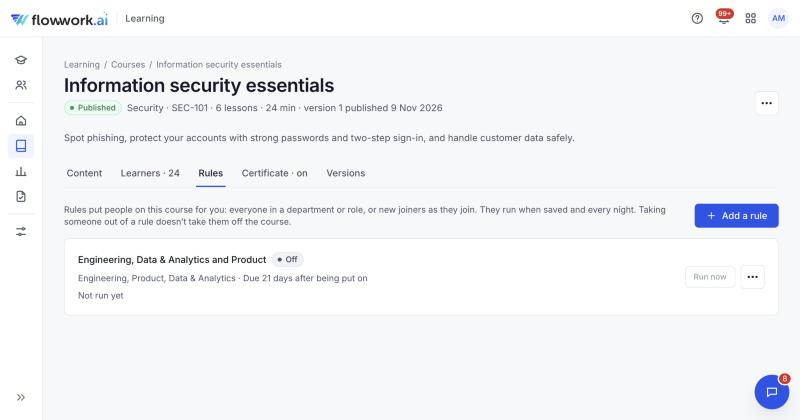
A rule puts people on a course for you: everyone in a department or with a designation, or every new joiner. It runs when you save it and again every night, so people who move into the department or join later get the course too. You set rules on the course's Rules tab.
Before you start
- You need the Assign courses permission to add, change, run or delete rules. Others with a Learning permission can see the rules but not change them.
- You can set rules up on a draft course. They show Rules start once the course is published and put nobody on until you publish.
- An archived course's rules can't be added or changed, and they don't run.
- A course can have up to 20 rules.
Add a rule
- Open the course and select the Rules tab.
- Select Add a rule.
- Under Who, choose:
- Everyone who matches: people who match now, and anyone who matches later.
- New joiners: only people who join from a date. Set Joining from. It can go back up to a year. Leave it on today to start with the next joiners.
- Narrow it down with any of Departments, Designations, Legal entities and Employment types. Leave a list empty for "any". Legal entities only shows when your company has more than one.
- In Also these people, add named people the rule should include as well.
- In Leave out, add people the rule must never put on.
- Check the preview: Covers 42 people now, how many would be put on, how many are already on the course, and how many are without a sign-in (skipped), with some names.
- Under Due, choose Days after being put on (for new joiners: Days after joining) and type the Days, or On a date, or No due date.
- Optionally type a Name. Left empty, the rule is named from who and when, for example "Sales · due 30 days after".
- Keep Rule is on switched on.
- Select Save and run (or Save rule when the course isn't published yet or the rule is off).
A message then says what happened, for example "12 people put on · 3 already on".
Read the full guide with your flowwork account
The rest of this page has the steps, screenshots and tips. Anyone at a company that uses flowwork can read every page, and ask the Help assistant about it.
Every step, in order Real screenshots The agents that help
New companies use flowwork free until 31 December 2026