
LearningStart here
What Learning does, and the menu
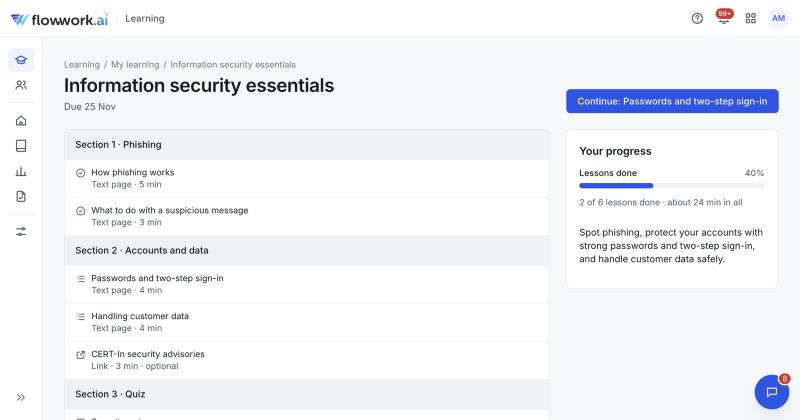
Learning is where your company gives you training courses and you take them: videos, PDFs, links, text pages and quizzes, with a due date. When you finish a course that gives a certificate, you get a certificate you can download and anyone can check. HR builds the courses, gives them to people by hand or with rules, and follows who has finished. Managers see their team's courses.
Before you start
- Open Learning from the app launcher (the grid at the top). The tile is called Learning. It opens on My learning.
- Your company must have Learning turned on. If it's off, you see Learning isn't turned on for your company and Ask your admin to turn on Learning.
- You don't need a permission to take courses. Everyone who signs in to a company with Learning on has My learning.
- What else you see depends on your permissions and on whether people report to you in People. See Who can do what.
The menu
The menu on the left has up to three groups.
| Item | What it's for | Who sees it |
|---|---|---|
| Learning › My learning | Your own courses (To do, Completed) and your Certificates. | Everyone |
| Learning › My team | The courses of the people below you in People, and who is late. | People with at least one direct report in People |
| Manage › Home | Company numbers: who has finished, who is late, certificates that run out soon. | People who can manage courses, assign courses or view learning reports |
| Manage › Courses | Every course: build, publish, assign and follow it. | People who can manage courses, assign courses or view learning reports |
| Manage › Learners | Everyone's courses in one list, with filters and CSV export. | People who can view learning reports |
| Manage › Certificates | Every certificate issued, with filters, export and revoke. | People who can view learning reports |
| Setup › Settings | Categories, certificate design, reminders and quiz defaults. | People with any Learning permission. Only people who can manage learning settings can change it. |
A group shows only when you can see at least one of its items. A page opened by its link without the permission shows You don't have access to this page.
Read the full guide with your flowwork account
The rest of this page has the steps, screenshots and tips. Anyone at a company that uses flowwork can read every page, and ask the Help assistant about it.
Every step, in order Real screenshots The agents that help
New companies use flowwork free until 31 December 2026