
LearningCourses
Lessons, videos and PDFs
Each lesson in a course is one of five kinds: a video, a PDF, a text page, a link or a quiz. This page explains the first four: what each needs, when it counts as done, and which files you can upload. Quizzes have their own page.
Before you start
- You need permission to manage courses.
- Open the course, go to the Content tab, and have at least one section. See Create a course.
- Videos: MP4 files with H.264 video, up to 95 MB. Longer videos go on YouTube or Vimeo.
- PDFs: up to 50 MB.
Add a video lesson
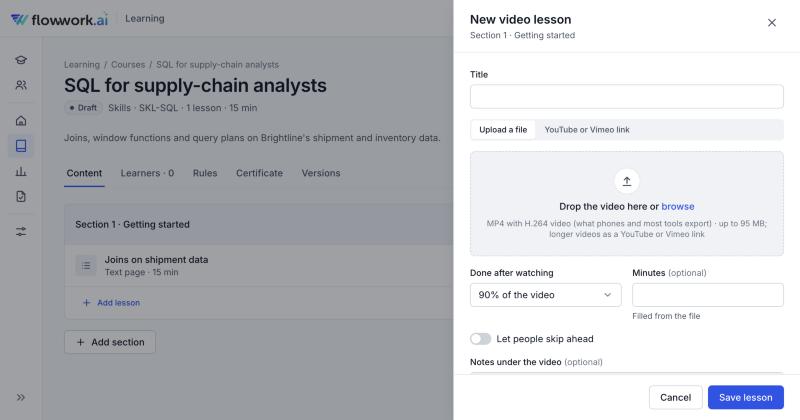
- Under a section, select Add lesson, then Video.
- Type a Title. If you upload first, the file name is used.
- Under Video, pick Upload a file or YouTube or Vimeo link.
- To upload: drop the file on Drop the video here or, or select it. Wait until it shows Uploaded. Minutes is filled in from the file.
- For a link: paste it in Link, for example a youtu.be address.
- In Done after watching, pick how much people must watch: 50%, 75%, 80%, 90% (the default) or 100% of the video.
- Turn on Let people skip ahead if people may jump forward in the video. It is off by default.
- Optionally add Notes under the video, such as key points or a transcript.
- Select Save lesson.
Read the full guide with your flowwork account
The rest of this page has the steps, screenshots and tips. Anyone at a company that uses flowwork can read every page, and ask the Help assistant about it.
Every step, in order Real screenshots The agents that help
New companies use flowwork free until 31 December 2026