
LearningMy learning
Take a quiz
Some lessons are quizzes. You start an attempt, answer the questions and hand it in. Learning marks it and tells you your score straight away. Passing the quiz finishes the lesson.
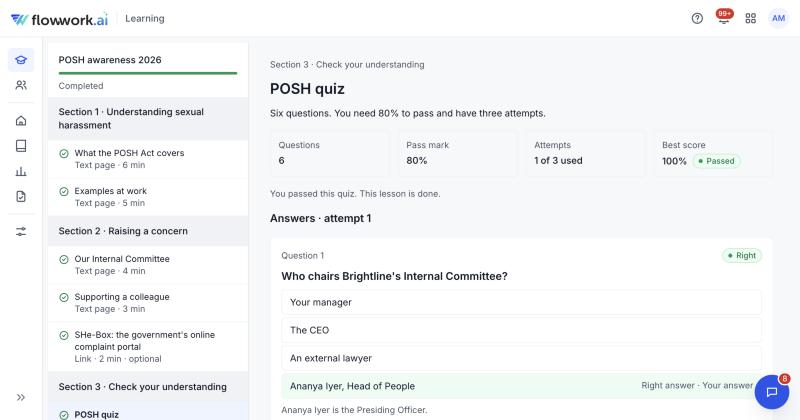
Before you start
The quiz's start screen shows:
- Questions: how many there are,
- Pass mark: the score you need, for example 80%,
- Attempts: No limit, or how many you've used, for example 1 of 3 used,
- Best score, once you've handed in an attempt, with Passed when you've passed.
The questions stay hidden until you start an attempt. There's no time limit.
Take the quiz
- Open the quiz lesson and select Start the quiz (or Try again after a first attempt).
- Answer each question:
- one answer: pick one option,
- pick every right answer: tick every option that is right,
- true or false: pick True or False.
- Move between questions with Next question and Previous, or select a question's number. Some quizzes show all questions on one page instead.
- When you're ready, select Hand in.
- In Hand in your answers?, select Hand in. If some questions are blank, it warns that they will count as wrong.
Your answers are saved as you go (Saving…, Saved). If saving fails, you see Not saved — your answers are kept here and sent when you hand in.
If you close the tab during an attempt, it stays open. Come back to the quiz and you carry on where you were. An attempt counts only when you hand it in.
Read the full guide with your flowwork account
The rest of this page has the steps, screenshots and tips. Anyone at a company that uses flowwork can read every page, and ask the Help assistant about it.
Every step, in order Real screenshots The agents that help
New companies use flowwork free until 31 December 2026