
LearningCourses
Quizzes in a course
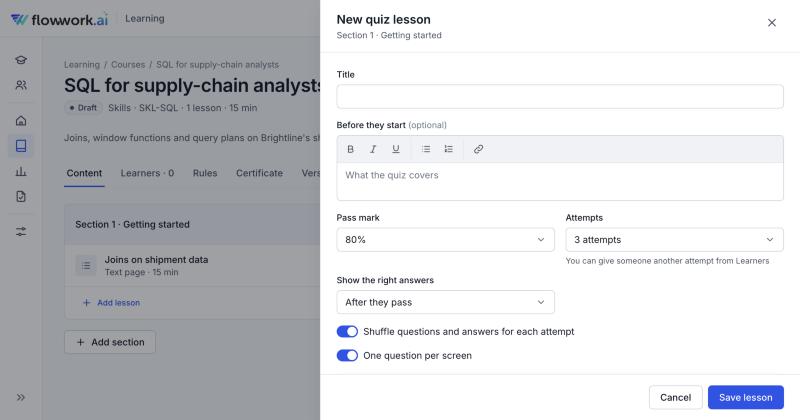
A quiz is a lesson with questions. Learning marks it on the server, and passing it marks the lesson done. You set the pass mark, how many attempts people get, whether questions are shuffled, and when people see the right answers.
Before you start
- You need permission to manage courses.
- A new quiz starts with your company's quiz defaults from Learning › Settings › Quiz defaults: pass mark, attempts and when to show correct answers. You can change them for each quiz.
Add a quiz
- On the course's Content tab, under a section, select Add lesson, then Quiz.
- Type a Title.
- Optionally write Before they start, for example what the quiz covers.
- Set Pass mark: 50%, 60%, 70%, 75%, 80%, 90% or 100%.
- Set Attempts: 1, 2, 3 or 5 attempts, or No limit.
- Set Show the right answers:
- After they pass: only once the person passes.
- After every attempt: after each attempt they hand in.
- Never (score only): people see only their score.
- Turn Shuffle questions and answers for each attempt on or off.
- Turn One question per screen on or off.
- Add the questions (below), then select Save lesson.
Read the full guide with your flowwork account
The rest of this page has the steps, screenshots and tips. Anyone at a company that uses flowwork can read every page, and ask the Help assistant about it.
Every step, in order Real screenshots The agents that help
New companies use flowwork free until 31 December 2026