
BooksBanking
Bank and cash accounts
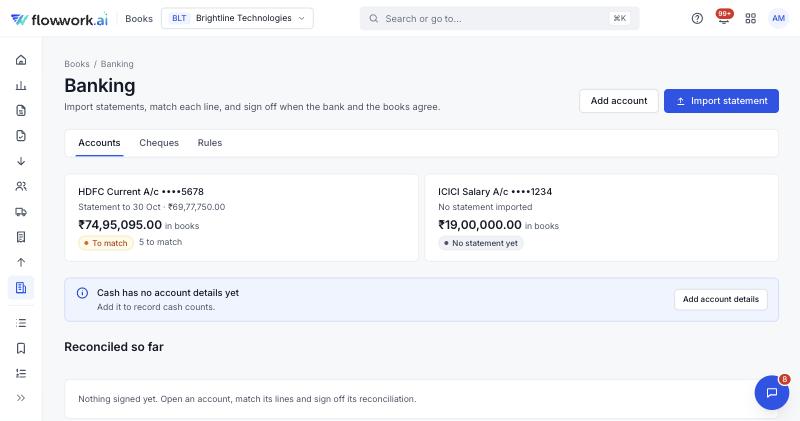
Banking is where you bring in your bank statements, match each line to the books and sign off when the bank and the books agree. It also keeps the cheque register, the rules that suggest entries, and cash counts. This page covers setting up the accounts and finding your way around.
Before you start
- To see Banking you need one of these: View books, Post journals, Manage books settings, Manage banking or Approve payments. See Who can do what.
- To add account details you need Manage banking or Manage books settings.
- Importing, matching, rules, cheques, cash counts and sign-off need Manage banking. Without it, Banking is read-only. An auditor reads all of it and changes none of it.
- Every bank or cash account in Banking is a bank or cash ledger in your chart of accounts. Create the ledger first, or use the link in the drawer.
Add a bank account
- Go to Books › Banking.
- Select Add account (or Add bank account the first time).
- In Ledger, pick the bank ledger. Or select create a new bank ledger.
- In Name on screens (optional), type a short name, such as "HDFC current".
- Type the IFSC and the Account number. The number is masked after you save.
- Select Add account.
A statement is checked against this account number, so a file from another account or company is noticed. Bank ledgers without details show a note with Add account details. Add them before the first import.
Read the full guide with your flowwork account
The rest of this page has the steps, screenshots and tips. Anyone at a company that uses flowwork can read every page, and ask the Help assistant about it.
Every step, in order Real screenshots The agents that help
New companies use flowwork free until 31 December 2026