
BooksReports and dashboards
Profit and loss
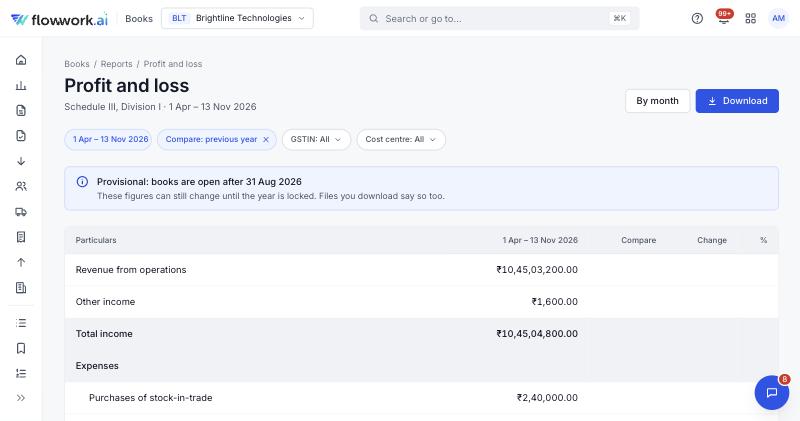
The Statement of profit and loss shows income, expenses and profit for a period, in the Schedule III, Division I layout. You can compare it with another period, narrow it to one GSTIN or cost centre, and see it month by month.
Before you start
- You need View financial reports (
allow_view_financial_reports). - The figures are for the legal entity picked in the entity switcher.
- Each ledger lands on a Schedule III line through the chart of accounts and the mapping in Financial statements.
Steps
- Go to Reports and, under Financial statements, select Profit and loss.
- Select the period chip and pick a financial year, This month, This quarter, Year to date or Custom dates. It opens on the year to date.
- The Compare chip starts on the previous year. Pick Previous period, Custom dates or No comparison to change it. With a comparison you also get Change and % columns.
- To narrow the figures, use the GSTIN chip (one registration) or the Cost centre chip (one cost centre, or Not assigned for lines with none).
- Select a line's name to see the ledgers in it, then a ledger to open its entries for the same period.
- Select Download and pick Excel, PDF or CSV.
Read the full guide with your flowwork account
The rest of this page has the steps, screenshots and tips. Anyone at a company that uses flowwork can read every page, and ask the Help assistant about it.
Every step, in order Real screenshots The agents that help
New companies use flowwork free until 31 December 2026