
Your approvals inbox
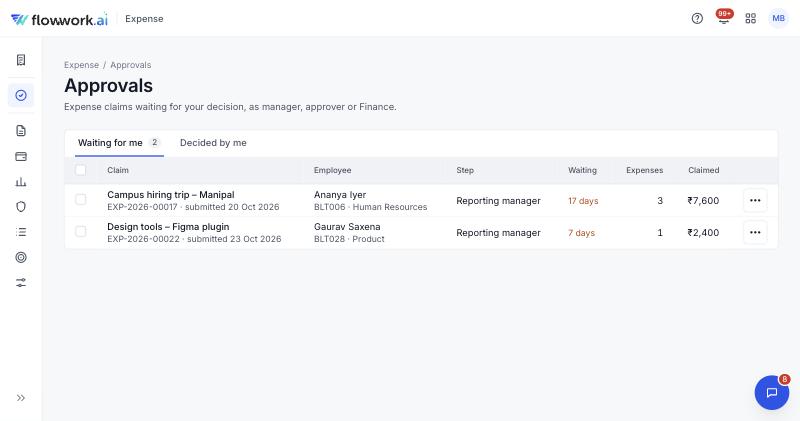
Team › Approvals lists the expense claims waiting for your decision, as a reporting manager, a named approver or Finance. You can open a claim to review it expense by expense, or approve or reject several claims at once.
Before you start
- Everyone with access to Expense sees Team › Approvals. It stays empty unless a claim is waiting for you.
- You don't need a permission to approve as a reporting manager or as a named approver on a policy's approval chain.
- To approve Finance steps you need the permission to approve expense claims. Everyone with that permission shares the Finance steps: the first one to decide does it for all.
- You never see your own claims here, even if you hold the Finance permission.
Who sees which claim
A claim shows under Waiting for me when its current step is open and one of these is true:
- You're the employee's reporting manager in People, and the step is a manager step. If the policy allows it, additional reporting managers can approve too.
- You're one of the people named on the step.
- The step is a Finance step and you can approve expense claims.
- Someone reassigned the step to you. See Review a claim.
Approvers are fixed when the employee submits the claim. If the reporting manager changes in People later, claims already in approval stay with the old manager until someone reassigns the step.
A claim moves out of your inbox as soon as you or another approver of the same step decides, or the employee withdraws it.
Read the full guide with your flowwork account
The rest of this page has the steps, screenshots and tips. Anyone at a company that uses flowwork can read every page, and ask the Help assistant about it.