
ExpenseApprovals
Review a claim
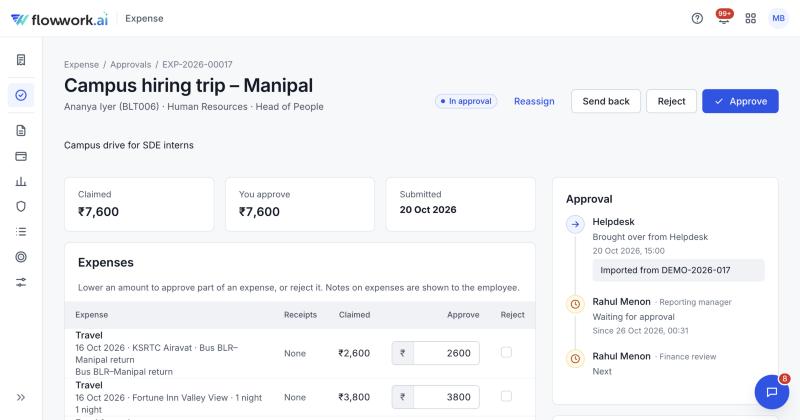
The review page shows one claim the way an approver needs it: every expense with its receipts and policy flags, what you approve, and the approval history. From here you approve (all of it or part of it), reject, or send the claim back to the employee.
Before you start
- You can act on a claim when its current step is waiting for you: you're the reporting manager, a named approver of the step, or the step is a Finance step and you can approve expense claims.
- You can open a claim without acting on it if you approved an earlier step, or you can view all expense claims. You then see Waiting for and the step's name, and no buttons.
- You can never approve your own claim.
What the page shows
- The header: the claim's title, the employee's name, employee number, department and designation, and the claim's status.
- The purpose the employee wrote, if any.
- Claimed, You approve (what you're about to approve, updated as you change amounts) and Submitted.
- Expenses: one row per expense, with its category, date, details, description, Receipts, Claimed and the amount you approve.
- Receipts: every file on the claim, with its type and size.
- Approval (on the right): the claim's history and the steps still to come, with who decided, when and their note.
- Employee: department and cost centre.
- Accounting: on approved and paid claims, for people who work with the company's books. See Accounting.
Read the full guide with your flowwork account
The rest of this page has the steps, screenshots and tips. Anyone at a company that uses flowwork can read every page, and ask the Help assistant about it.
Every step, in order Real screenshots The agents that help
New companies use flowwork free until 31 December 2026