
ExpenseYour claims
Submit a claim and track it
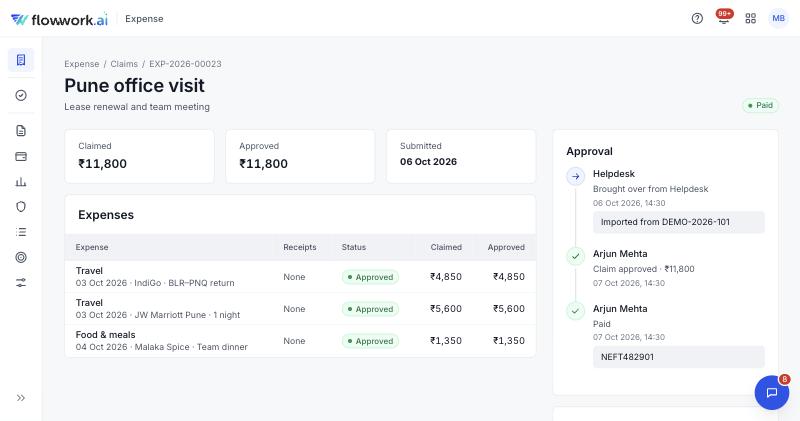
When every expense is on the claim and nothing is flagged red, you submit it. It gets a claim number and goes to your approvers one step at a time. You follow it on the claim's page until it's paid, and you get an email and a bell notification at each decision.
Before you start
- The claim needs a Title and at least one expense.
- Fix everything flagged in red: an expense marked Needs details (added from a receipt that couldn't be read), a missing receipt, a missing required field, a date outside the filing window, a blocked limit, a missing justification. Orange warnings and Possible duplicate don't stop you.
Submit a claim
- Open the draft from My expenses › Claims and select Edit and submit.
- Check the Total card on the right. If something stops you, it's listed there, or it says Fix the flagged expenses before you submit. and the button is greyed out.
- Select Submit for approval. On a phone, select Submit at the bottom.
You see Claim submitted with the claim number, for example "EXP-2026-00012 is waiting for approval." The claim opens, with the status In approval.
Read the full guide with your flowwork account
The rest of this page has the steps, screenshots and tips. Anyone at a company that uses flowwork can read every page, and ask the Help assistant about it.
Every step, in order Real screenshots The agents that help
New companies use flowwork free until 31 December 2026