
ExpenseYour claims
Receipts, and expenses without a receipt
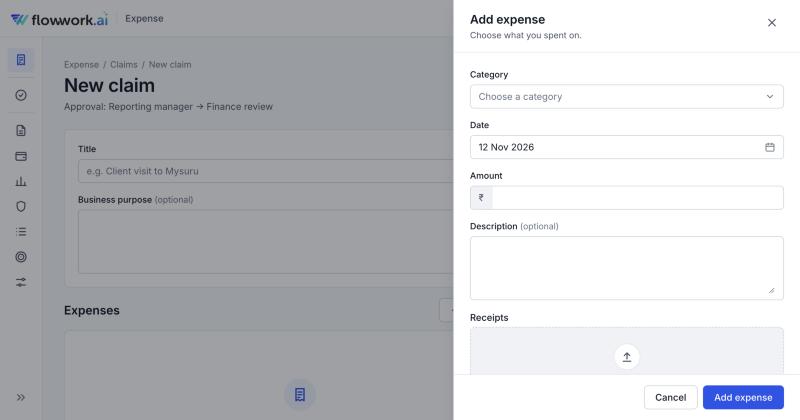
Most expenses need their bill attached as a photo or PDF. You add receipts in the expense's panel. If you lost a bill, your company may let you send the expense without it, with a short declaration.
Before you start
- Have the file ready: PDF, JPG, PNG or WEBP.
- Each file can be up to 10 MB, or less if your company set a smaller limit. The panel shows the limit under the drop area.
Add a receipt
- Open the expense's panel: Add expense, or select an expense's card.
- Under Receipts, drop the file on Drop receipts here or, or select it from your computer. You can add several files at once.
- On a phone, select Take a photo to use the camera.
- Wait until the file shows Uploaded.
- Select Add expense or Save expense.
If you select Cancel instead, receipts you uploaded in that panel are removed again.
Read the full guide with your flowwork account
The rest of this page has the steps, screenshots and tips. Anyone at a company that uses flowwork can read every page, and ask the Help assistant about it.
Every step, in order Real screenshots The agents that help
New companies use flowwork free until 31 December 2026