
ProcurementPurchase orders
Approve and send a purchase order
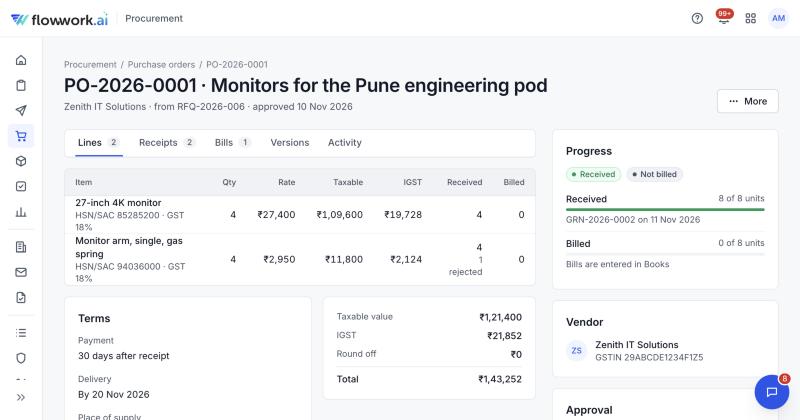
After a buyer submits a purchase order, your approval rules decide who approves it. Once it's approved, the buyer sends it to the vendor: the vendor gets the PDF by email with a link to the vendor portal, where they acknowledge the order and confirm the delivery date.
Before you start
- To submit, withdraw, send or mark an order acknowledged you need Manage purchasing.
- To approve, you must be an approver of the order's current step. Approvers picked by a rule (reporting manager, department head, named people, budget owners) can open the order from their notification or from Approvals. See Who can do what.
- The vendor needs a contact email. If they have none, you add an address when you send.
Who approves
The rules under Setup › Approval rules for purchase orders decide the steps, for example by amount, department or item category. See Approval rules.
- The buyer who submits the order is never one of its approvers.
- If no rule applies, or nobody other than the buyer could approve it, the order is Approved at once. The Approval card says "No approval was needed".
- An order over a budget that asks for approval gets an extra first step for the budget owners.
Read the full guide with your flowwork account
The rest of this page has the steps, screenshots and tips. Anyone at a company that uses flowwork can read every page, and ask the Help assistant about it.
Every step, in order Real screenshots The agents that help
New companies use flowwork free until 31 December 2026