
ProcurementPurchase orders
Bills and payments on an order
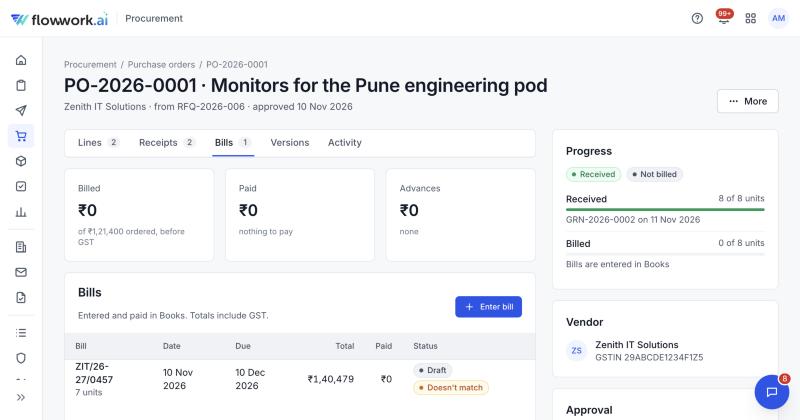
Vendor bills and payments aren't made in Procurement. Your accounts team enters the vendor's bill in Books, against the purchase order, and pays it there. The purchase order then shows what was billed and paid, on its Bills tab and in its Progress card.
Before you start
- You see the Bills tab only with Manage purchasing, Approve purchases or Manage procurement settings in Procurement.
- Your company must have Books set up. Until then the tab says Bills are entered in Books.
- To enter bills you need Manage purchases in Books. To accept a bill that doesn't match the order, or to approve payments, you need Approve payments in Books. These are Books permissions, not Procurement ones.
- An order can be billed once it's approved, until it's closed or cancelled. Books only offers open orders: Approved, Sent to vendor, Acknowledged, Partly received and Received.
Enter a bill for an order
From Procurement:
- Open the order and go to the Bills tab.
- Select Enter bill. You see it only with Manage purchases in Books.
- Books opens a new bill with the vendor and the order's lines filled in.
- Type the vendor's bill number, date and the rest of the bill as usual, then save or post it in Books.
From Books:
- Go to Books › Bills and select New bill.
- Choose the vendor.
- Select From purchase order.
- Tick one or more of the vendor's open orders and select Add lines.
Lines without a PO, such as freight, can be added to the same bill as usual.
Read the full guide with your flowwork account
The rest of this page has the steps, screenshots and tips. Anyone at a company that uses flowwork can read every page, and ask the Help assistant about it.
Every step, in order Real screenshots The agents that help
New companies use flowwork free until 31 December 2026