
ProcurementVendors
Find and add vendors
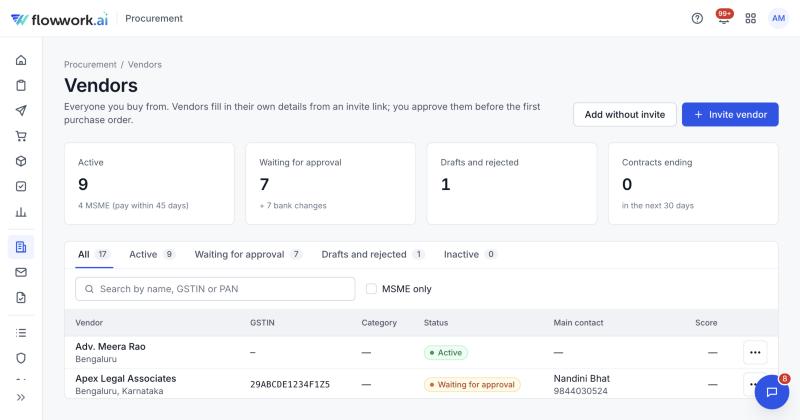
Vendors lists everyone your company buys from. You can search and filter the list, see where each vendor stands, and add a new vendor. The usual way to add one is to invite them, so they fill in their own GST, PAN and bank details. If you already have their details, you can add the vendor yourself with Add without invite.
Before you start
- To see vendors you need one of these permissions: view vendors, manage vendors or approve vendors. The Procurement Viewer role only views.
- To add, invite or change vendors you need manage vendors or approve vendors. The Procurement Buyer and Procurement Administrator roles have this.
- Without one of these, Vendors isn't in the menu, and the vendor pages can't be opened.
What's on the list
- Cards at the top: Active (with how many are MSME micro or small vendors, who must be paid within 45 days), Waiting for approval (plus bank changes waiting), Drafts and rejected, and Contracts ending in the next 30 days.
- Tabs: All, Active, Waiting for approval, Drafts and rejected, and Inactive (inactive and blacklisted vendors).
- Search: type part of a name, legal name, GSTIN or PAN.
- MSME only: shows only micro and small vendors.
- Columns: the vendor with city and state, GSTIN, Category, Status and Main contact. People who manage purchasing also see a Score from the vendor scorecard. A dash means fewer than 3 goods receipts so far.
- ⋯ on a row: Open, Send portal link…, Make inactive… (active vendors) or Make active (inactive vendors).
Read the full guide with your flowwork account
The rest of this page has the steps, screenshots and tips. Anyone at a company that uses flowwork can read every page, and ask the Help assistant about it.
Every step, in order Real screenshots The agents that help
New companies use flowwork free until 31 December 2026