
ProcurementVendors
Invite vendors to the vendor portal
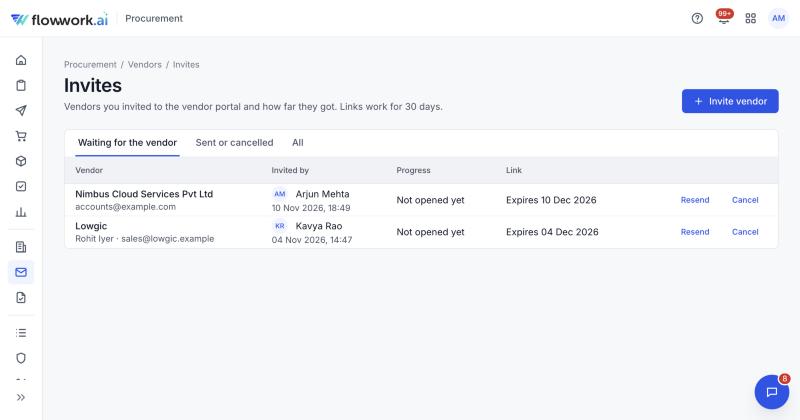
Instead of typing a vendor's details yourself, you can invite them. They get an email with a secure link to the vendor portal, sign in with a code sent to the same email, fill in their company, GST, PAN, MSME, contacts, bank account and documents, and send it to you for approval. Vendors › Invites shows everyone you invited and how far they got.
Before you start
- To send or cancel invites you need manage vendors. People who can only view vendors see the Invites list without buttons.
- Your company needs a portal file key, or vendors can't upload documents, cheques, quote files or invoices in the portal. See Turn on file uploads below.
- The person's email can't already belong to one of your vendors (as its company email or a contact's). For an existing vendor, use Send portal link… instead.
Steps: invite a new vendor
- Go to Vendors › Invites (or Vendors › Vendors) and select Invite vendor.
- In Company name (optional), type the vendor's name. They can correct it.
- Fill in Contact name and Email. The link and sign-in codes go to this email.
- Add a Message for the email if you like.
- Select Send invite.
A Draft vendor is created at once with this person as the main contact, and the email goes out.
Read the full guide with your flowwork account
The rest of this page has the steps, screenshots and tips. Anyone at a company that uses flowwork can read every page, and ask the Help assistant about it.
Every step, in order Real screenshots The agents that help
New companies use flowwork free until 31 December 2026