
ProcurementVendors
The vendor page
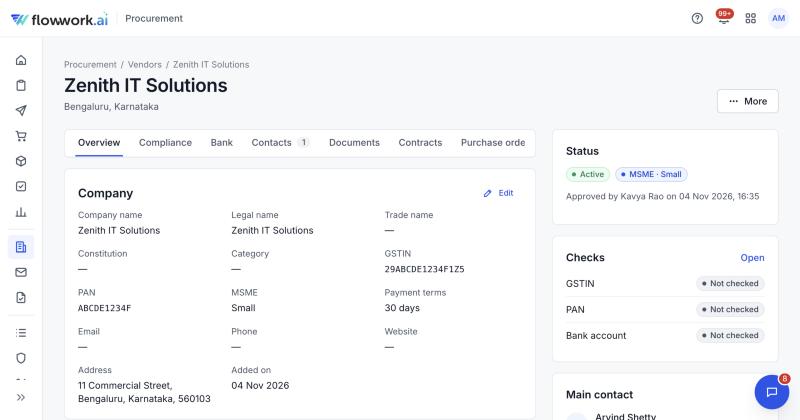
Each vendor has one page with everything you know about them, in tabs: Overview, Compliance, Bank, Contacts, Documents, Contracts, Purchase orders, Scorecard and Activity. The buttons at the top change with the vendor's status, for example Send for approval on a draft or Approve vendor for an approver.
Before you start
- To open a vendor you need view vendors, manage vendors or approve vendors.
- To change anything you need manage vendors or approve vendors. People who only view see the same tabs without Edit, Add or upload buttons.
- Purchase orders and Scorecard are shown only to people who manage purchasing.
- A blacklisted vendor can't be changed: the edit buttons are hidden on every tab.
The header and side cards
- Send for approval shows on a draft or rejected vendor. Reject and Approve vendor show to approvers while the vendor waits. Make active shows on an inactive vendor; Remove from blacklist on a blacklisted one (approvers only).
- More holds Send portal link…, Make inactive… and, for approvers, Blacklist….
- A coloured banner says why a vendor is waiting, rejected, inactive or blacklisted, with the reason given.
- On the right: Status (and who approved it, when), Checks (the latest GSTIN, PAN, bank and Udyam check result) and Main contact.
Read the full guide with your flowwork account
The rest of this page has the steps, screenshots and tips. Anyone at a company that uses flowwork can read every page, and ask the Help assistant about it.
Every step, in order Real screenshots The agents that help
New companies use flowwork free until 31 December 2026