
ProcurementReceiving and matching
Record a goods receipt
A goods receipt (GRN) records what actually arrived against a purchase order, or that a service was delivered. You count what came, accept what's fine and reject what isn't. Receipts can be partial: record each delivery as it arrives. What you accept is what the vendor can bill for.
Before you start
You can record a receipt if one of these is true:
- You have Record goods receipts (stores and admin staff). You see Goods receipts in the menu and every approved order.
- You have Manage purchasing (buyers).
- You raised a requisition that the order is for. You record it from the order's page; you don't see Goods receipts in the menu unless you also have one of the permissions above.
The order must be Approved, Sent to vendor, Acknowledged or Partly received, and have something left to receive. It doesn't have to be sent or acknowledged first.
Steps
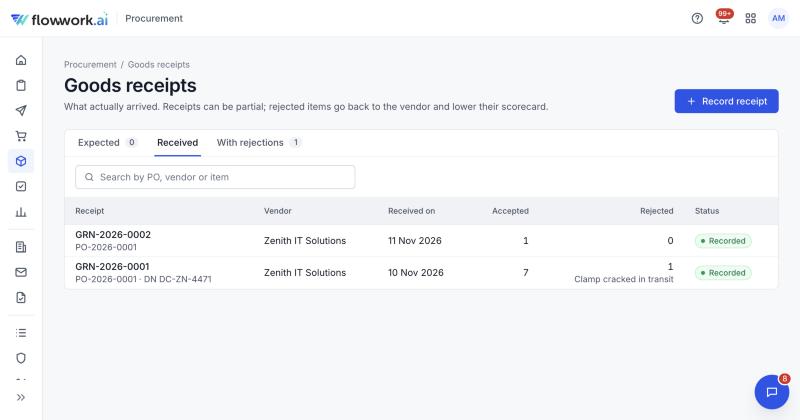
- Go to Procurement › Goods receipts. The Expected tab lists open orders with something still to come, earliest delivery date first.
- Select Record receipt on the order's row. (Or select Record receipt at the top and pick the Purchase order, or open the order and select Record receipt.)
- Set Received on. It starts at today. It can't be in the future, or before the day the order was approved (the day it was created, for an order without approval).
- Type the Delivery note no. if there is one (optional).
- For each line that arrived, check Received now. It starts with everything still to come; set it to 0 for lines that didn't arrive.
- If some items aren't acceptable, type them under Rejected (or lower Accepted). Received is always accepted plus rejected.
- For rejected items, fill in Why rejected, for example "Screen cracked in transit". It's required.
- Add Serial numbers if you track them: scan or type one, then press Enter.
- Add the delivery note or photos under Delivery note or photos (optional, PDF or images up to 25 MB each).
- Under How was the delivery?, choose On time and good or Problems. With Problems, say What went wrong.
- Select Save receipt.
The receipt gets its number, for example GRN-2026-0015, and shows on the order's Receipts tab.
Read the full guide with your flowwork account
The rest of this page has the steps, screenshots and tips. Anyone at a company that uses flowwork can read every page, and ask the Help assistant about it.
Every step, in order Real screenshots The agents that help
New companies use flowwork free until 31 December 2026