
ProcurementSetup
Set up budgets
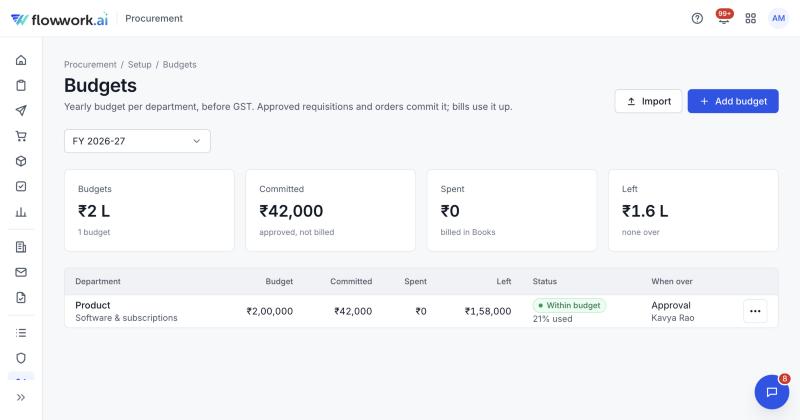
A budget is what one department may spend on purchases in a financial year (April to March), before GST. You can also give a department a budget for one item category. Requisitions and purchase orders are checked against the budget when they're submitted, and you choose what happens when one would go over: a warning, an extra approval, or a refusal.
Before you start
- Budgets is under Setup in the menu. People who manage purchasing, approve purchases or manage procurement settings can see it.
- To add, change, import or delete budgets you need Manage procurement settings.
- Departments come from People. Categories come from Setup › Items › Categories.
- A department's head from Settings › Department heads is suggested as the owner of a new budget.
Add a budget
- Open Setup › Budgets and pick the Financial year.
- Select Add budget.
- Pick the Department.
- Pick a Category if this budget is only for lines of one category. Leave it empty for the whole department.
- Enter the Amount for the whole year, before GST.
- Pick what happens When a requisition or order would go over:
- Warn only: people see a warning and can still send it.
- Budget approvers approve: an extra first approval step goes to the people you pick.
- Block new requests: requisitions and orders over the budget are refused.
- For Budget approvers approve, pick the Budget approvers. Any one of them approves, before your usual approval rules.
- Pick the Owners (optional). They get a notification at 80 % and when the budget is used up.
- Add a Note if you like, and select Save budget.
To change a budget, open its ⋯ menu and select Edit. You can change the amount, what happens when over, the people and the note, but not the department or category.
Read the full guide with your flowwork account
The rest of this page has the steps, screenshots and tips. Anyone at a company that uses flowwork can read every page, and ask the Help assistant about it.
Every step, in order Real screenshots The agents that help
New companies use flowwork free until 31 December 2026